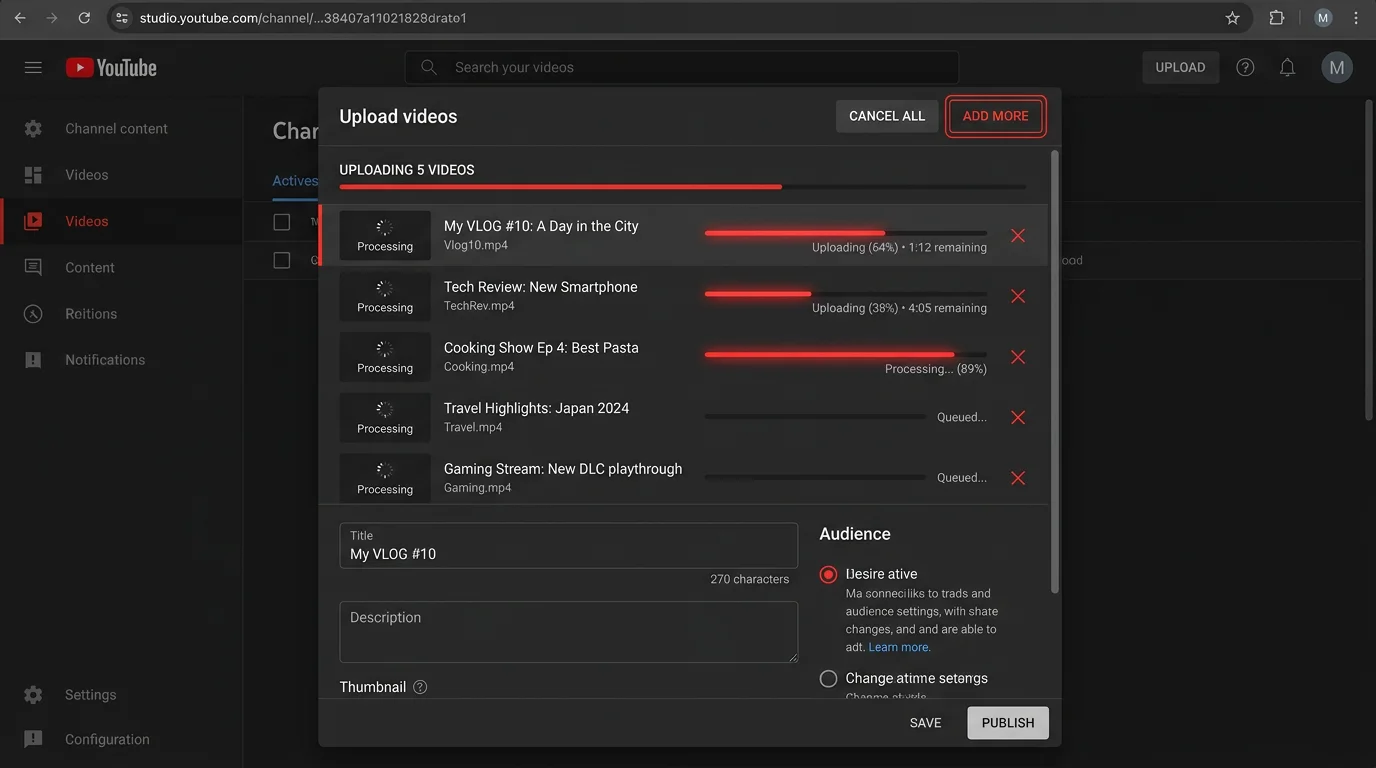
YouTube Shorts Aspect Ratio: Complete 2026 Guide
The exact aspect ratio for YouTube Shorts is 9:16 (vertical). Here's everything you need to know about Shorts dimensions, resolution, and file specs for 2026.
FlowShorts Team
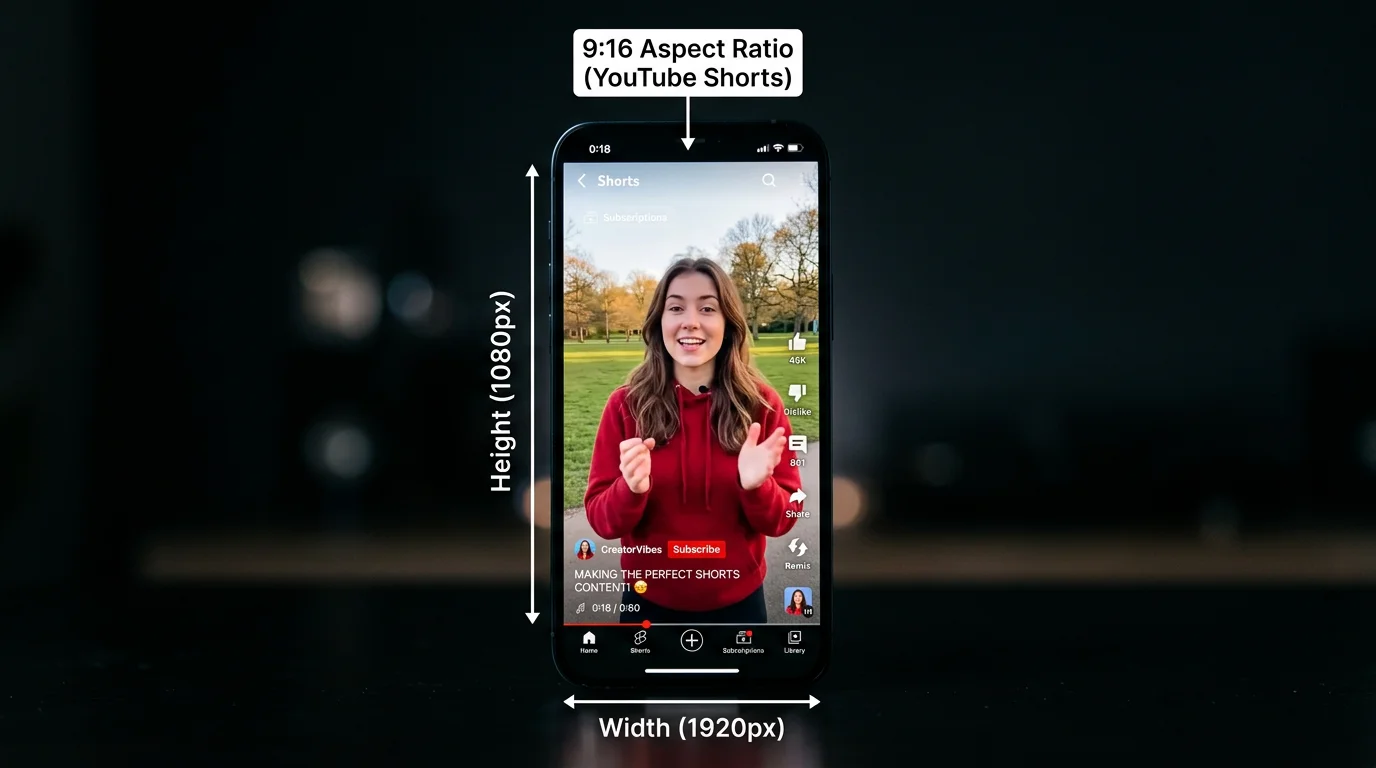
If you're creating content for YouTube Shorts, the first thing you need to get right is the YouTube Shorts aspect ratio. Get it wrong and your video will be cropped, letterboxed, or look unprofessional in the Shorts feed — and that kills watch time before you've even said a word.
The answer is simple: the YouTube Shorts aspect ratio is 9:16 — a vertical format with a resolution of 1080 pixels wide by 1920 pixels tall. Every Short that performs well is shot or exported in this orientation. This guide covers everything you need to know about Shorts dimensions, specs, and how to make sure your videos always look perfect in the feed.
Key Takeaways
- Aspect ratio: 9:16 vertical (portrait orientation)
- Recommended resolution: 1080x1920 pixels (Full HD vertical)
- Max video length: 60 seconds when recorded in-app; up to 3 minutes when uploaded directly
- Supported formats: MP4, MOV, AVI — MP4 (H.264) is recommended for best compatibility and quality
What Is the YouTube Shorts Aspect Ratio?
The YouTube Shorts aspect ratio is 9:16, meaning the video is 9 units wide for every 16 units tall. This is the standard vertical video format used across all short-form platforms. At full HD resolution, a 9:16 video measures 1080x1920 pixels. YouTube recommends this resolution for the sharpest possible image in the Shorts feed. Videos recorded or exported in 9:16 fill the entire mobile screen with no black bars or cropping.
Complete YouTube Shorts Specs (2026)
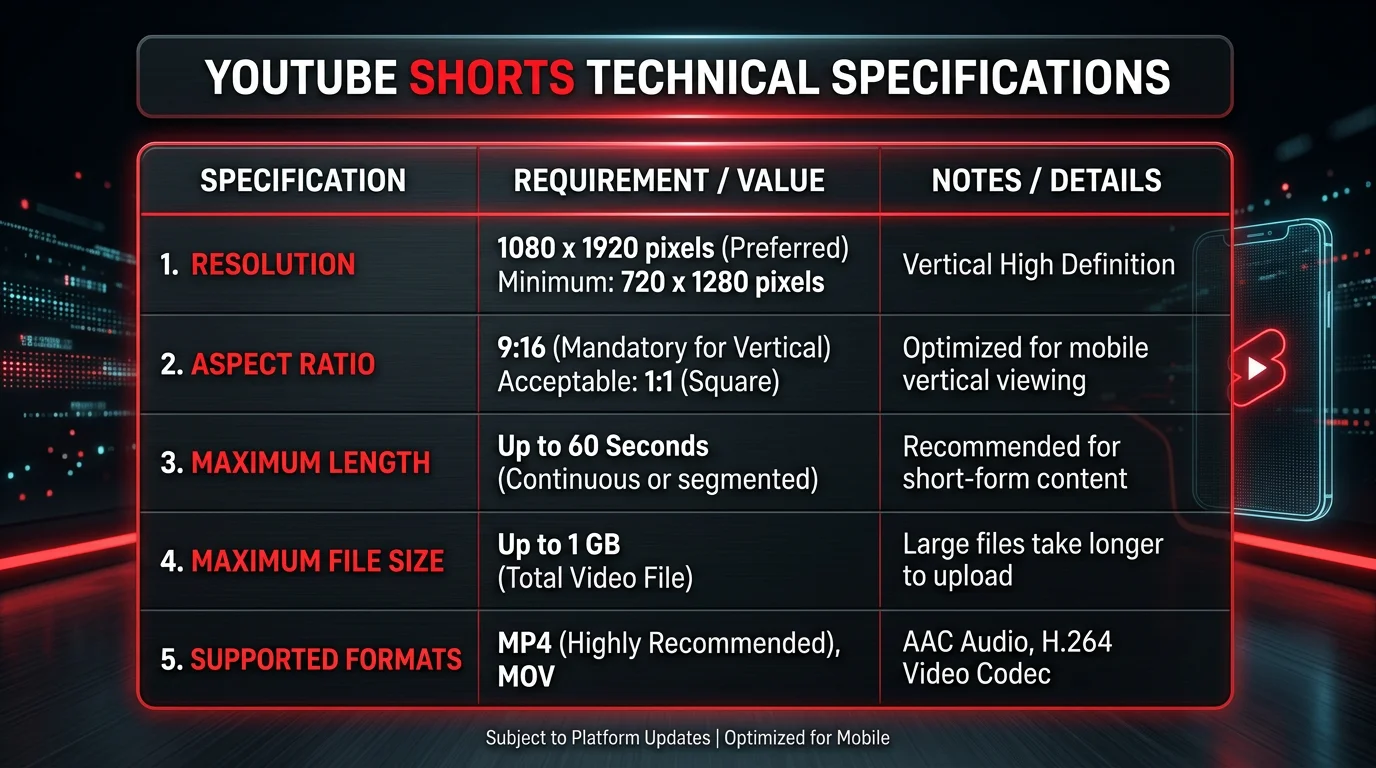
Before you upload your next Short, make sure your file meets all of YouTube's current technical requirements. Here is a full breakdown of every spec you need to know.
| Spec | Requirement | Notes |
|---|---|---|
| Aspect Ratio | 9:16 | Vertical/portrait orientation required for Shorts feed |
| Resolution | 1080x1920 px (recommended) | Minimum 720x1280 px; higher is better for quality |
| Max Length (in-app) | 60 seconds | When recording directly inside the YouTube app |
| Max Length (upload) | 3 minutes | Uploaded vertical videos up to 3 min qualify as Shorts |
| Max File Size | 256 GB | Effectively no practical limit for short clips |
| Supported Formats | MP4, MOV, AVI | MP4 with H.264 codec strongly recommended |
| Frame Rate | 24–60 fps | 30 fps is standard; 60 fps for smoother motion content |
| Bitrate (video) | 1–8 Mbps recommended | Higher bitrate = better quality; 4–8 Mbps optimal for 1080p |
| Audio | AAC, 128–320 kbps | Stereo preferred; 44.1 kHz sample rate |
| Title Length | 100 characters max | First 3 lines show in feed; keep key info front-loaded |
For a deeper dive into exact pixel dimensions across all scenarios, see our full guide to YouTube Shorts dimensions.
Why 9:16 Matters for YouTube Shorts
The 9:16 ratio is not an arbitrary choice — it is built around how people actually hold their phones. More than 94% of smartphone users hold their device vertically when watching short-form video. YouTube Shorts is designed to fill that screen edge to edge, creating an immersive, full-screen experience that keeps viewers locked in.
When a Short plays in the Shorts feed, it occupies 100% of the screen from top to bottom. There are no sidebars, no dead zones, no wasted space. The viewer's entire field of vision is your video. This is why creators who nail the 9:16 format consistently outperform those who repurpose horizontal footage — the viewing experience is fundamentally different, and the algorithm rewards content that keeps people watching.
YouTube's Shorts feed also applies its recommendation algorithm partly based on completion rate. A video that fills the screen naturally invites viewers to watch all the way through. A video with awkward black bars or cropping signals poor production quality and tends to get swiped past faster, which signals to the algorithm that the content isn't worth surfacing.
What Happens if Your Video Is the Wrong Aspect Ratio?
Uploading a video in the wrong aspect ratio to YouTube Shorts causes one of two problems — and both hurt your performance.
Create Faceless Videos on Autopilot
FlowShorts generates and posts AI videos to YouTube, TikTok & Instagram while you sleep.
Try FlowShorts Free →Pillarboxing: If you upload a square (1:1) or horizontal (16:9) video, YouTube will add black bars on the left and right sides to fill the 9:16 frame. This wastes screen real estate, looks amateurish, and dramatically reduces perceived video quality. Viewers who see pillarboxed Shorts routinely swipe away faster than they would on a native vertical video.
Auto-cropping: In some cases, YouTube may attempt to auto-crop a non-vertical video to fit the 9:16 frame. This can cut off faces, text overlays, logos, or key visual elements that were intentionally placed in the frame. You have no control over how the crop is applied, which means important content disappears without warning.
The safest approach is always to export or film in 9:16 from the start. If you are repurposing existing horizontal content, use an editing tool that lets you manually reframe the crop before uploading — never rely on YouTube to do it for you.
YouTube Shorts vs TikTok vs Instagram Reels: Aspect Ratio Comparison
Good news: if you are creating content for multiple platforms, the core aspect ratio is the same across all three major short-form platforms. All three use 9:16. However, there are meaningful differences in safe zones, resolution recommendations, and length limits that affect how you should design your content. See our full comparison in the YouTube Shorts vs TikTok vs Reels guide.
| Platform | Aspect Ratio | Recommended Resolution | Max Length | Safe Zone (top/bottom) |
|---|---|---|---|---|
| YouTube Shorts | 9:16 | 1080x1920 px | 3 minutes (upload) | ~250 px top, ~400 px bottom |
| TikTok | 9:16 | 1080x1920 px | 10 minutes | ~150 px top, ~350 px bottom |
| Instagram Reels | 9:16 | 1080x1920 px | 90 seconds | ~250 px top, ~400 px bottom |
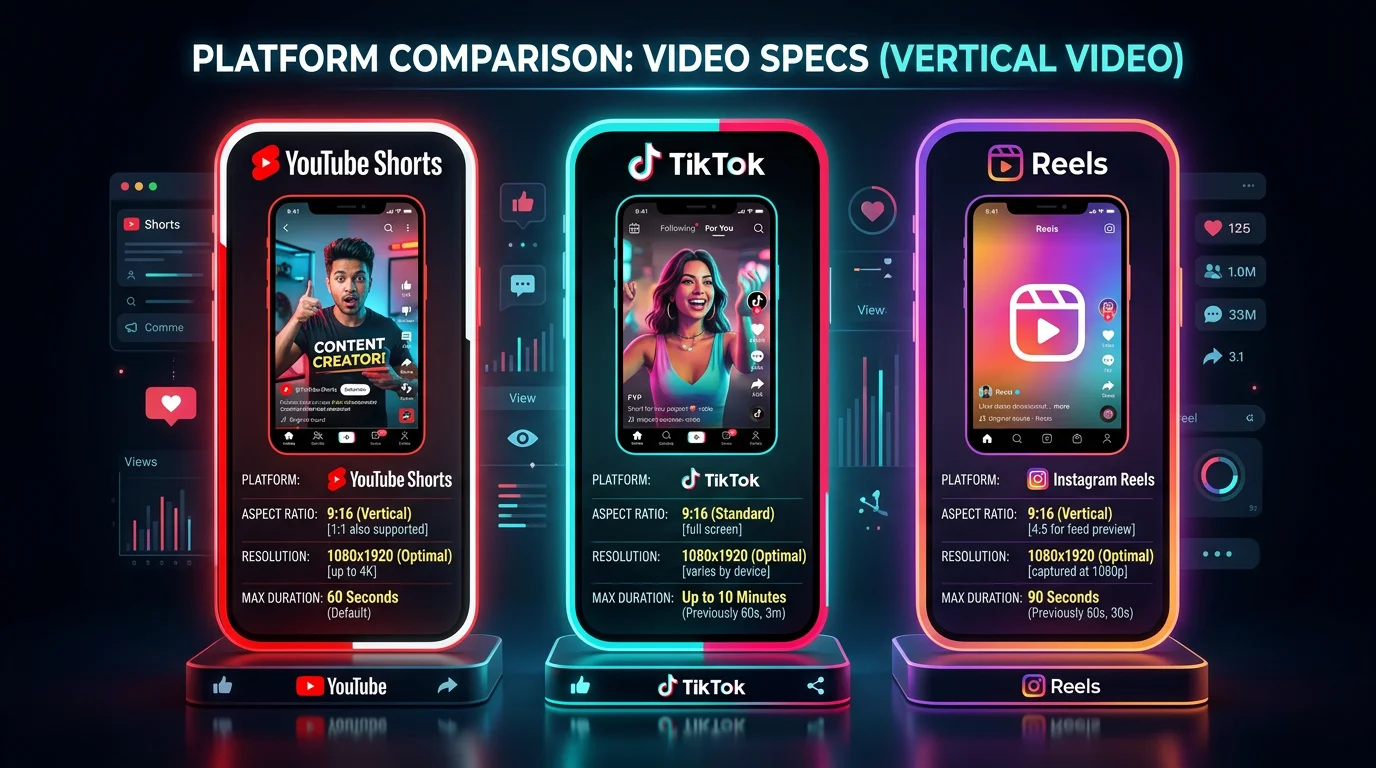
The key practical difference is the UI safe zone — the area at the top and bottom of the screen where each platform overlays its own interface elements (titles, usernames, like buttons, comment counts). Any text or graphics you place in those zones will be partially obscured. When designing your Shorts, keep all critical visual information — including subtitles, captions, and logos — within the middle 60–70% of the vertical frame.
Because all three platforms share the same 9:16 ratio and 1080x1920 resolution, a single well-produced Short can be cross-posted to all three platforms with minimal adjustment. The main edits needed are trimming to platform-specific length limits and adjusting text placement to respect each platform's safe zones.
How to Create Videos in the Right Aspect Ratio
There are three reliable methods to ensure your videos are always in the correct 9:16 format before they hit the Shorts feed.
Method 1: Film Vertically from the Start
The simplest solution is to record your footage in portrait mode on your smartphone or camera. Hold your phone upright before pressing record. Most modern smartphones default to the native sensor orientation, which means filming vertically gives you a true 9:16 frame with no post-processing required. This approach works well for talking-head content, demonstration videos, and any footage you shoot yourself.
Method 2: Edit in a 9:16 Timeline
If you are editing existing footage or using a desktop editing suite, set your project canvas to 1080x1920 pixels before you start editing. Most major video editors — including Adobe Premiere Pro, DaVinci Resolve, CapCut, and Final Cut Pro — allow you to select a vertical canvas or custom resolution at project creation. Editing in a 9:16 timeline from the beginning means every decision you make about framing, text placement, and motion graphics is already optimized for the Shorts format. Export as MP4 at H.264 with a bitrate between 4–8 Mbps for best results.
Method 3: Use an AI Short-Form Video Generator
Create Faceless Videos on Autopilot
FlowShorts generates and posts AI videos to YouTube, TikTok & Instagram while you sleep.
Try FlowShorts Free →The fastest way to produce Shorts in the correct format — consistently, at scale — is to use an AI video generation tool. FlowShorts generates fully produced, faceless short-form videos that are automatically formatted to 9:16 at 1080x1920 resolution. Every video is built for the Shorts feed from the ground up — you never need to think about aspect ratio, resolution, or export settings.
FlowShorts also auto-posts directly to YouTube Shorts, TikTok, and Instagram Reels, so your 9:16 videos go live across all three platforms without any manual uploading. Plans start at $19/month for 8 videos (Starter), $39/month for 30 videos (Creator), and $69/month for 60 videos (Pro). For creators who want to scale their short-form output without spending hours in an editor, this is the most efficient path. See exactly how it works in our guide to how to make AI YouTube Shorts.
Frequently Asked Questions
What aspect ratio is YouTube Shorts?
The YouTube Shorts aspect ratio is 9:16 — a vertical portrait orientation. This means the video is 9 units wide and 16 units tall. At standard HD resolution, this translates to 1080 pixels wide by 1920 pixels tall. Any video you upload in 9:16 will fill the Shorts feed edge to edge on a mobile screen.
What is the resolution for YouTube Shorts?
The recommended resolution for YouTube Shorts is 1080x1920 pixels (Full HD vertical). The minimum accepted resolution is 720x1280 pixels, but 1080x1920 is strongly recommended for the sharpest image quality in the feed. Uploading at a lower resolution may result in a blurry or pixelated appearance on high-resolution mobile screens.
Can YouTube Shorts be horizontal?
Technically, you can upload a horizontal (16:9) video to YouTube, but it will not appear in the Shorts feed. YouTube identifies a video as a Short based on vertical orientation (9:16) and a duration of 3 minutes or less. A horizontal video will be treated as a standard YouTube video and placed in the regular feed, not the Shorts section. To appear in Shorts, vertical format is required.
What is the best format for YouTube Shorts?
The best file format for YouTube Shorts is MP4 with the H.264 video codec and AAC audio. MP4/H.264 offers the best balance of quality, file size, and upload compatibility. Aim for a video bitrate between 4–8 Mbps for 1080p content, an audio bitrate of at least 128 kbps, and a frame rate of 30 fps for standard content or 60 fps for high-motion footage.
What frame rate should I use for YouTube Shorts?
YouTube Shorts supports frame rates between 24 fps and 60 fps. For most content — talking heads, voiceovers, slideshows, and text-based videos — 30 fps is the standard and produces smooth, natural-looking video. For action footage, gaming clips, or fast-motion content, 60 fps delivers noticeably smoother playback. Avoid mixing frame rates within a single export, as this can cause stuttering during playback.
The Bottom Line on YouTube Shorts Aspect Ratio
The YouTube Shorts aspect ratio is 9:16 vertical at 1080x1920 pixels — and getting this right is the single most important technical decision you make before publishing a Short. A correctly formatted video fills the screen, keeps viewers engaged, and signals to the algorithm that your content is worth promoting. The wrong aspect ratio introduces black bars, random cropping, and a viewer experience that drives people to swipe away.
Whether you film vertically on your phone, edit in a 9:16 timeline on your desktop, or use an AI tool to generate Shorts at scale, the spec is always the same: 9:16, 1080x1920, MP4, 30–60 fps, 4–8 Mbps. Nail these numbers every time and the technical side of your Shorts strategy is completely handled.
If you want to skip the manual work entirely and produce perfectly formatted Shorts consistently — without filming, editing, or uploading by hand — try FlowShorts. Every video it generates is automatically sized to 9:16 at 1080x1920 and posted directly to YouTube Shorts, TikTok, and Instagram Reels for you.