How to Bulk Upload YouTube Shorts: Complete 2026 Guide
Can you bulk upload YouTube Shorts? Here's how to upload multiple YouTube videos efficiently in 2026, including the fastest methods and automation tools.
FlowShorts Team
If you've tried to bulk upload YouTube videos through YouTube Studio, you already know the frustration: there's no single "upload all" button. YouTube doesn't offer a native bulk upload feature the way some platforms do — but there are four practical methods to upload multiple YouTube videos at once, ranging from dragging files into the upload dialog to fully automated AI tools that handle the entire process for you.
This guide covers every method in detail so you can choose the right approach for your channel size, technical comfort level, and posting volume.
Key Takeaways
- YouTube Studio has no dedicated bulk upload button — but you can drag multiple video files into the upload dialog and they'll queue one after another.
- The YouTube Data API lets developers and agencies script true programmatic bulk uploads without touching the UI at all.
- Third-party schedulers (Buffer, Hootsuite, SocialBee) add cross-platform scheduling on top of YouTube's native uploader, but you still supply the video files yourself.
- AI video generators like FlowShorts skip the upload step entirely by generating and auto-posting Shorts on a schedule — no files, no queues, no manual work.
Can You Bulk Upload to YouTube?
YouTube does not have a dedicated bulk upload button in YouTube Studio. You cannot select 20 videos and click "Upload All" the way you might batch-upload photos to Google Drive. However, YouTube Studio's upload dialog does accept multiple files at once — you drag them in, and they process sequentially. For true programmatic bulk uploading, the YouTube Data API is the developer-grade option. For Shorts creators who want to post consistently without manual uploads at all, AI auto-posting tools remove the problem entirely.
Method 1: YouTube Studio Multi-File Upload
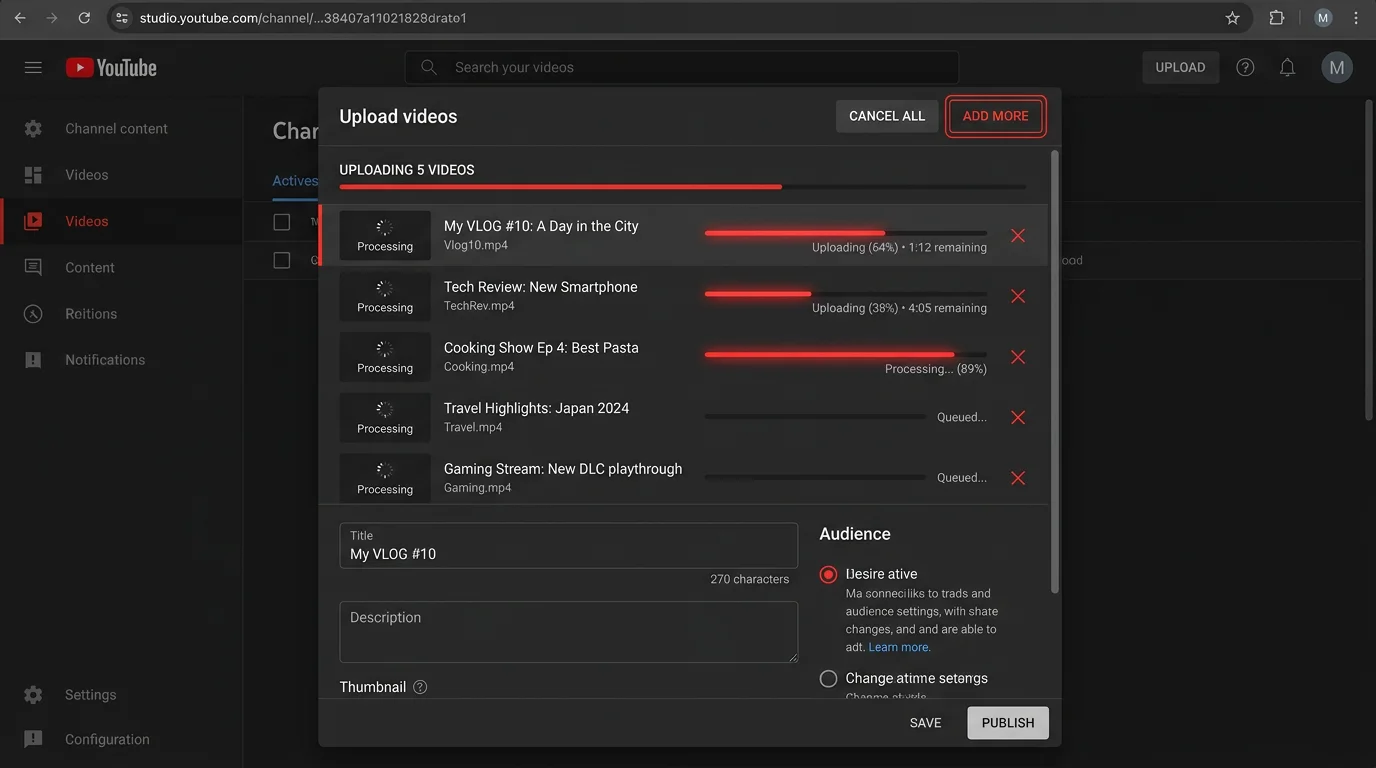
This is the fastest workaround available inside YouTube Studio with no coding or third-party tools required. When you open the upload dialog, you can drag multiple video files in at the same time. YouTube queues them and processes each one in sequence — you still need to fill in the title, description, and visibility settings for each video individually, but the actual file-upload part happens in parallel.
How to Upload Multiple YouTube Videos at Once in YouTube Studio
- Go to studio.youtube.com and sign in to your channel.
- Click "Create" in the top-right corner, then select "Upload videos" from the dropdown menu.
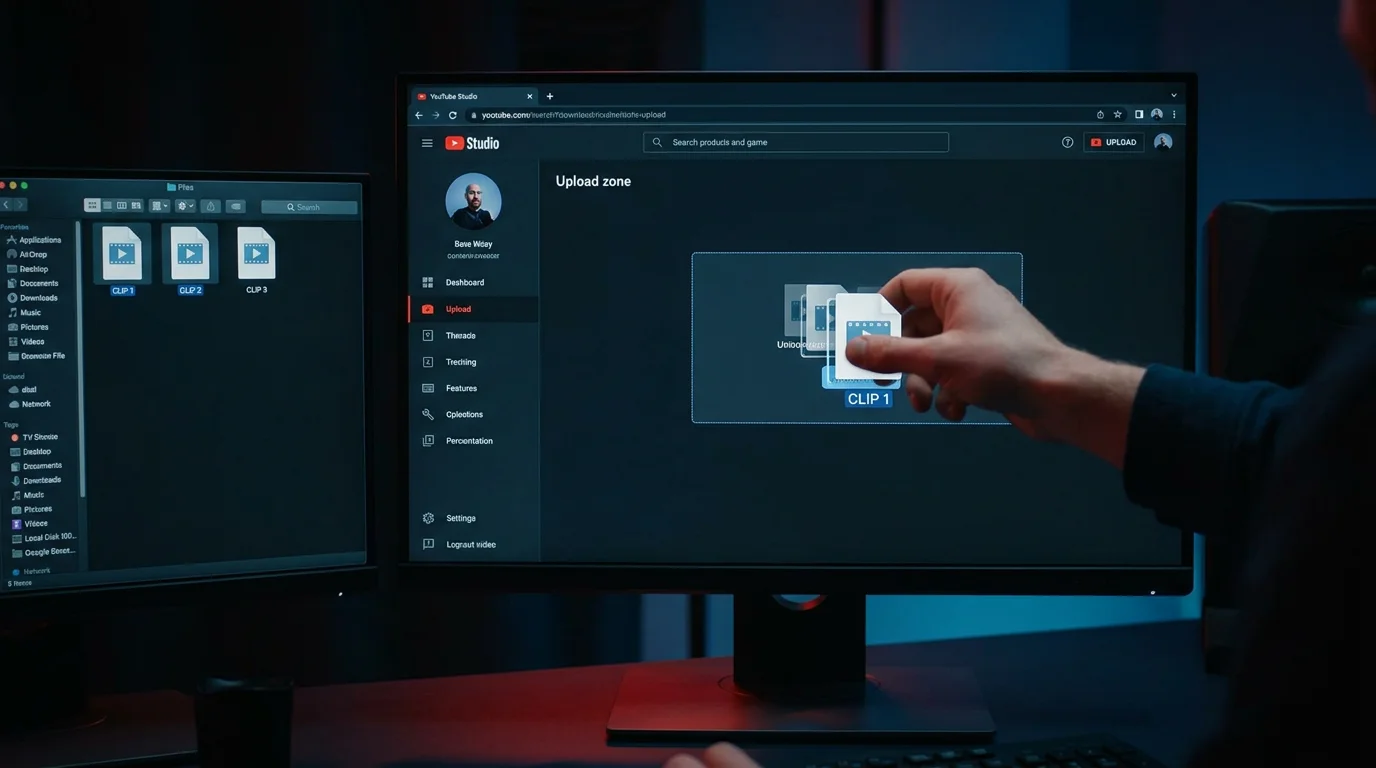
- Select multiple video files. In the file picker dialog, hold Cmd (Mac) or Ctrl (Windows) and click to select multiple files, or drag and drop a batch of files directly into the upload window.
- Watch the queue populate. YouTube Studio will show a progress bar for each file simultaneously. Files upload in parallel even though you'll configure their metadata one at a time.
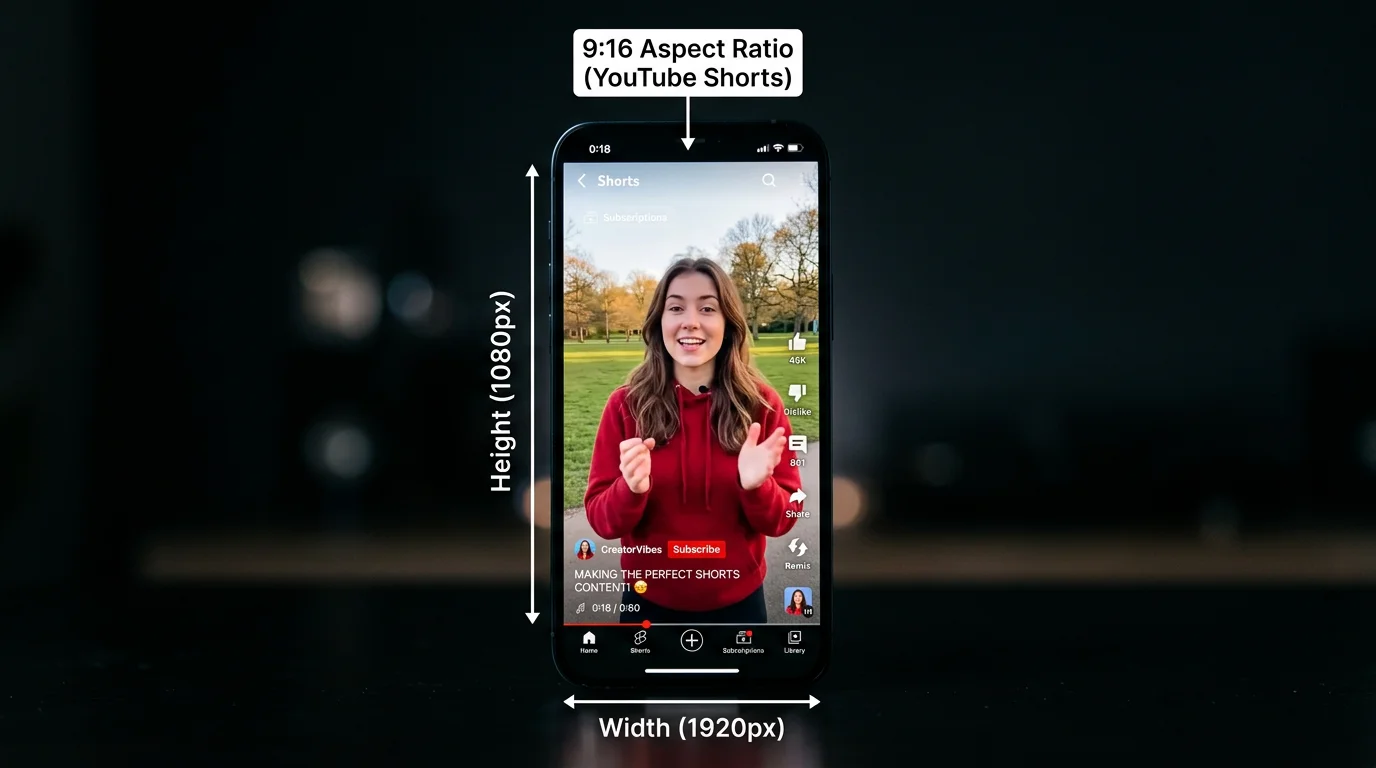
- Fill in details for each video. A separate details panel appears for every file. Add your title, description, tags, and thumbnail. For Shorts, keep titles under 100 characters and make sure your video is vertical (9:16) and under 3 minutes.
- Set visibility and scheduling. On the "Visibility" tab for each video, choose Public, Private, or Schedule. If scheduling, pick your date and time. To learn more about scheduling cadences, see our guide on how to schedule YouTube Shorts.
- Click "Done" for each video once its details are filled in. YouTube will publish or schedule each Short according to the settings you chose.
Limitations of this method: You must manually complete the metadata for each video — title, description, tags, thumbnail, and scheduled time. For 5 videos that's manageable. For 30 or 60 videos a month, this process becomes a significant time sink. There's also no way to apply a metadata template in bulk; you fill in each form individually.
Method 2: YouTube Data API (For Developers and Agencies)
The YouTube Data API v3 is YouTube's official programmatic interface. With it, you can write a script that reads a folder of video files and their associated metadata from a spreadsheet, then uploads them to your channel automatically — no browser required.
Here's how the approach works at a high level:
- Authentication: Use OAuth 2.0 to authorize your script to act on behalf of your YouTube account.
- Upload request: Use the
videos.insertendpoint with a multipart upload. Pass the video binary and a JSON snippet containing the title, description, tags, category ID, and privacy status. - Scheduling: Set
status.publishAtto an ISO 8601 timestamp to schedule the upload for a future date and time. - Batch loop: Wrap the upload call in a loop that iterates over your video files. Add a delay between requests (YouTube recommends 1 second minimum) to avoid rate-limit errors.
Important quota note: The YouTube Data API grants 10,000 units per day by default. Each video upload costs 1,600 units. That means the default quota allows roughly 6 uploads per day — enough for a Starter-tier schedule but not a Pro-tier one. You can request a quota increase through the Google Cloud Console, but approval is not guaranteed and can take weeks.
Create Faceless Videos on Autopilot
FlowShorts generates and posts AI videos to YouTube, TikTok & Instagram while you sleep.
Try FlowShorts Free →The API approach is ideal for agencies managing multiple channels or developers building internal tools. For individual creators posting 8–60 Shorts per month, the setup complexity and quota constraints usually make this method impractical compared to the alternatives below.
Method 3: Third-Party Scheduling Tools
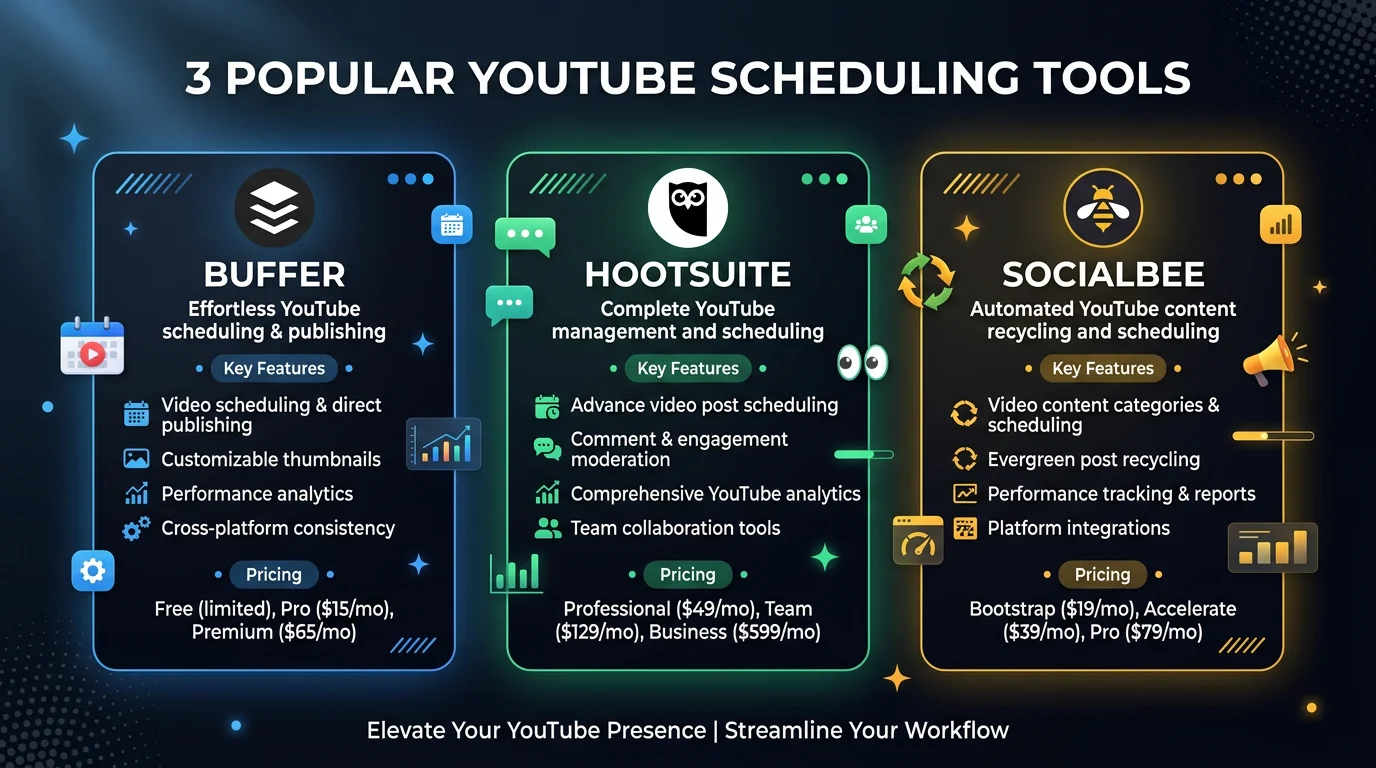
Tools like Buffer, Hootsuite, and SocialBee add a scheduling layer on top of YouTube's API. You upload your video files to their platform, set titles, descriptions, and post times, and they handle the actual publishing to YouTube (and other platforms like TikTok and Instagram) on your behalf.
Buffer: The cleanest UI of the major schedulers. You can queue multiple YouTube videos in the calendar view and reorder them by dragging. Buffer's "Reminders" feature for mobile-first posting can also push notifications to your phone when it's time to manually post a video that requires a native app upload. Buffer plans start at around $6/month for individuals, scaling to $120/month for agencies.
Hootsuite: Better suited for teams. Hootsuite's bulk scheduling feature lets you upload a CSV file containing post times and captions, then attach video files to each row. This is the closest thing to true bulk scheduling through a UI. Plans start at $99/month, which is expensive for solo creators.
SocialBee: Focuses on content categories and evergreen recycling. You can create a "YouTube Shorts" category, load it with videos, and set a posting cadence. SocialBee will cycle through your queue automatically. Starting at $29/month.
The core limitation of all third-party schedulers: you still have to create and supply every video file yourself. These tools help you organize and distribute content — they don't generate it. If you're posting 30–60 Shorts per month, sourcing that many videos remains a major production bottleneck. Read our full guide on how to post YouTube Shorts for a deeper look at each platform's posting workflow.
Method 4: AI Video Generation + Auto-Posting (Best for Shorts Creators)
If your goal is to maintain a consistent YouTube Shorts presence without spending hours each week filming, editing, and manually uploading videos, AI automation tools flip the workflow entirely. Instead of creating content and then figuring out how to upload it in bulk, these tools generate the content and post it automatically on a schedule — no file management, no upload queues, no metadata forms to fill out.
FlowShorts is built specifically for this use case. Here's how it works:
- Pick your niche. Choose from categories like finance, motivation, fitness, tech, history, science, or entertainment. FlowShorts uses this to generate relevant topics automatically.
- Connect your YouTube channel (and TikTok, Instagram if you want cross-platform posting). Authorization takes about 60 seconds.
- Set your posting schedule. Choose how many Shorts to post per week and what time of day to publish them.
- FlowShorts generates and posts automatically. The platform uses a multi-stage AI pipeline: script generation (Google Gemini), image generation (fal.ai), voiceover (ElevenLabs TTS), captions (word-level sync), and video rendering — then posts directly to your connected accounts via the YouTube API.
The result is a faceless YouTube Shorts channel that posts on autopilot. No editing software, no upload dialogs, no scheduling spreadsheets.
FlowShorts plans:
- Starter — $19/month: 8 videos per month (2 per week), posted Tuesday and Wednesday.
- Creator — $39/month: 30 videos per month (daily posting), every day of the week.
- Pro — $69/month: 60 videos per month (2 per day), maximum posting frequency.
For creators who want to understand how the YouTube Shorts algorithm responds to posting frequency and consistency, see our deep-dive on the YouTube Shorts algorithm.
Create Faceless Videos on Autopilot
FlowShorts generates and posts AI videos to YouTube, TikTok & Instagram while you sleep.
Try FlowShorts Free →Tips to Speed Up Your YouTube Upload Workflow
Whichever method you use, these practices will cut the time you spend on the upload process significantly:
- Prepare metadata in a spreadsheet before you upload. Create columns for title, description, tags, scheduled date, and thumbnail filename. Copy-paste into YouTube Studio rather than writing from scratch.
- Batch your uploads on one day per week. Instead of uploading one video each day, dedicate a 2-hour block to upload and schedule the entire week's content at once. This reduces context-switching and keeps your workflow predictable.
- Use a consistent title template. YouTube's autocomplete and search benefit from recognizable title patterns. Consistent formatting also speeds up the metadata step during uploads.
- Compress videos before uploading. Large files take longer to upload and process. Export Shorts at 1080x1920, H.264, CRF 23. Files should be under 500MB for fast upload times on a standard internet connection.
- Pre-create your thumbnails in bulk. Use a Canva template or Figma component to generate a full week's thumbnails in one session. Name them to match your video files so you can attach them quickly during upload.
- Upload during off-peak hours. YouTube's processing servers handle lower traffic volumes between midnight and 6 AM in your time zone. Large batches often process faster when queued overnight.
Frequently Asked Questions
Can you bulk upload YouTube Shorts?
YouTube does not have a dedicated bulk upload button for Shorts. However, you can drag multiple video files into the YouTube Studio upload dialog at once, and they will queue and process in sequence. You still need to fill in the title, description, and scheduling details for each Short individually. For true bulk automation, the YouTube Data API or AI tools like FlowShorts are the better options.
How do I upload multiple YouTube videos at once?
To upload multiple YouTube videos at once, go to YouTube Studio, click "Create" then "Upload videos," and drag multiple video files into the upload window simultaneously. YouTube Studio will display a progress bar for each file and process them in parallel. You will need to complete the title, description, tags, and scheduling settings for each video separately before confirming each upload.
Is there a bulk upload tool for YouTube?
Yes. The YouTube Data API v3 is YouTube's official bulk upload tool for developers — it allows programmatic uploads via script with no UI interaction. Third-party platforms like Hootsuite also support CSV-based bulk scheduling for YouTube. For Shorts creators, AI tools like FlowShorts go a step further by generating and auto-posting videos on a schedule, eliminating the need to source or upload files at all.
What is the fastest way to upload many YouTube videos?
The fastest way to upload many YouTube videos is to use the YouTube Data API with a script that reads video files and metadata from a folder and spreadsheet, then uploads them automatically. For non-developers, using YouTube Studio's multi-file upload dialog with pre-prepared metadata in a spreadsheet is the next fastest option. AI auto-posting tools like FlowShorts are the fastest overall for Shorts since they eliminate the need to create or upload files manually.
Can YouTube Studio schedule multiple uploads?
Yes, YouTube Studio supports scheduling for multiple videos. After dragging multiple files into the upload dialog, you can set a different scheduled date and time for each video individually on the Visibility tab. YouTube Studio does not have a bulk scheduling interface where you can set dates for all videos at once — each video's schedule must be configured separately. For batch scheduling with a calendar view, third-party tools like Buffer or Hootsuite offer a more streamlined experience.
The Right Bulk Upload Method for Your Channel
If you just need to get a handful of pre-made videos onto YouTube this week, YouTube Studio's multi-file upload is the quickest path — drag your files in, fill out the metadata, and schedule each one. If you're an agency or developer managing high-volume channels, the YouTube Data API gives you full programmatic control at the cost of setup time and daily quota limits.
For creators who want to run a consistent YouTube Shorts channel without spending hours every week on production and uploads, the most efficient solution is an AI tool that handles both ends of the pipeline. FlowShorts generates faceless Shorts automatically and posts them to your YouTube channel on a schedule — so the question of how to bulk upload stops being relevant entirely.