How to Schedule YouTube Shorts in 2026
Three methods to schedule YouTube Shorts: YouTube Studio desktop, the mobile app, and third-party tools like Buffer and Later. Plus best posting times and full automation options.
FlowShorts Team
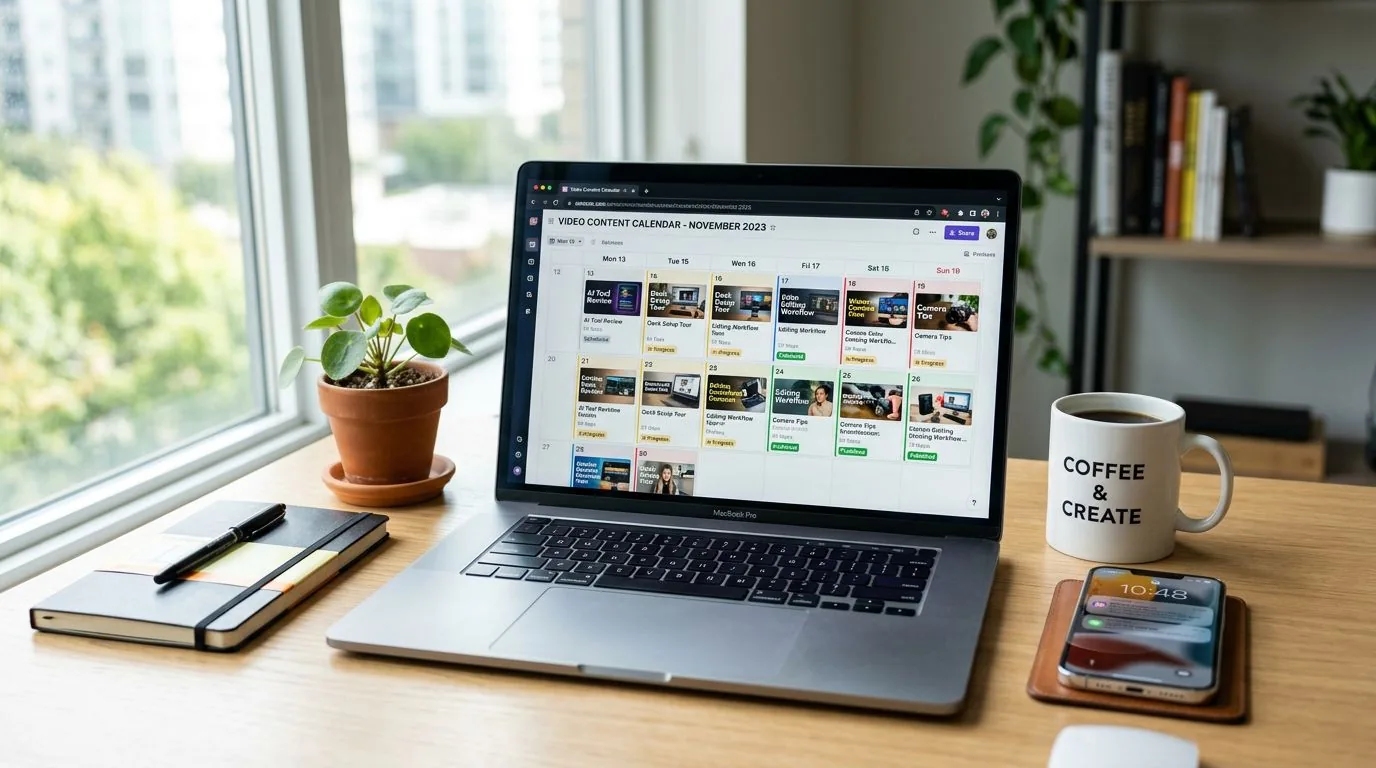
Yes, you can schedule YouTube Shorts. YouTube added native scheduling to YouTube Studio in 2023, and it works for Shorts the same way it works for long-form videos. You pick a date and time, and the Short publishes automatically. If you need more advanced features like batch uploads or cross-platform posting, third-party tools handle that too.
This guide covers three methods to schedule YouTube Shorts in 2026: YouTube Studio on desktop, the YouTube mobile app, and third-party scheduling tools. It also covers best posting times, a full automation option for faceless channels, and answers to common scheduling questions.
Can You Schedule YouTube Shorts?
Yes. YouTube supports native scheduling for Shorts through YouTube Studio on desktop and through the YouTube mobile app. Any video under 3 minutes in vertical (9:16) or square format can be scheduled as a Short. There is no limit on how far in advance you can schedule, and scheduled Shorts receive the same algorithmic treatment as manually published ones.
This feature was introduced alongside YouTube's broader push into short-form content. Since Shorts now account for over 70 billion daily views globally (according to YouTube's 2024 earnings report), the platform has invested in making the creation and scheduling workflow as smooth as possible.
You have three main options for scheduling:
- YouTube Studio (desktop): Full control over metadata, scheduling, and analytics. Best for batch uploads.
- YouTube mobile app: Quick scheduling after filming on your phone. Limited to one video at a time.
- Third-party tools: Buffer, Later, Hootsuite, and others. Useful for cross-platform scheduling to TikTok and Instagram from a single dashboard.
How to Schedule YouTube Shorts in YouTube Studio
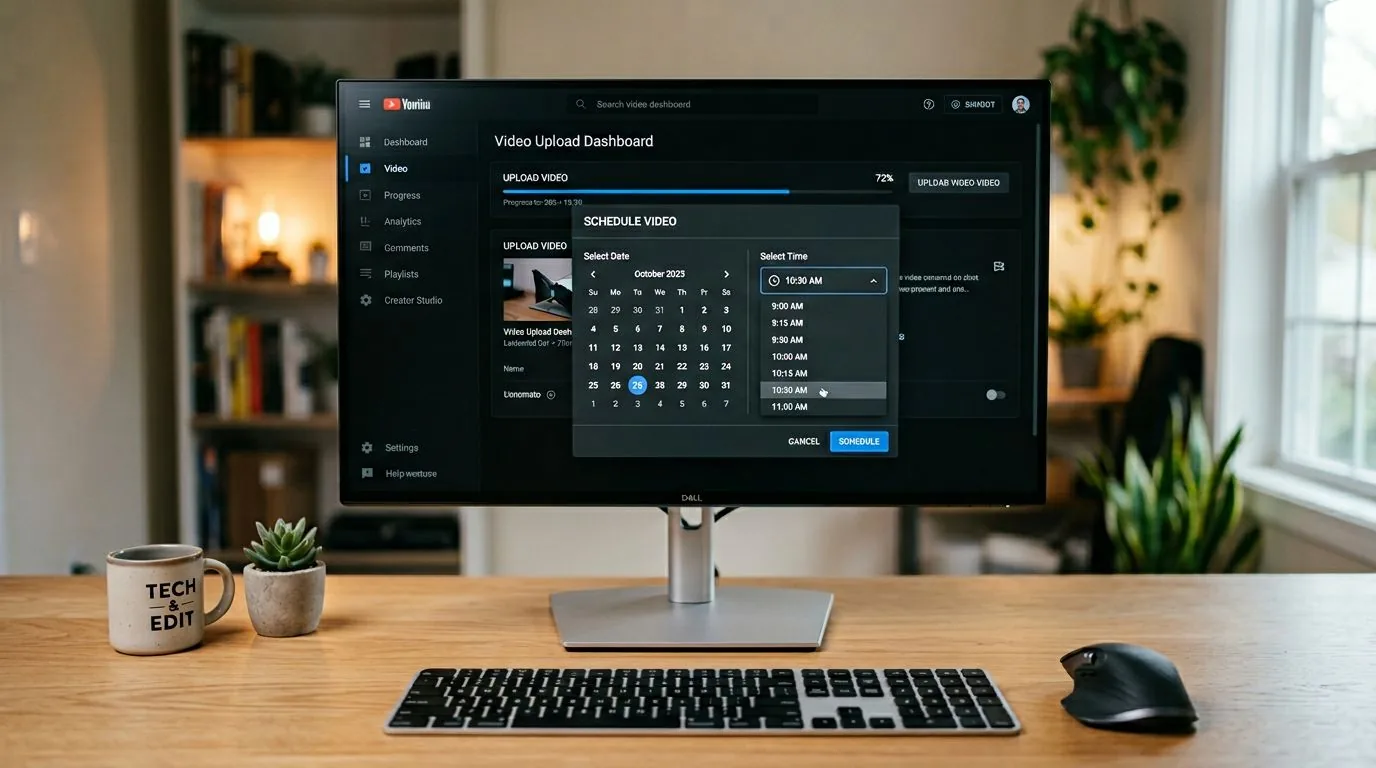
YouTube Studio on desktop is the most reliable way to schedule Shorts. Here are the steps:
- Sign in to YouTube Studio on your computer.
- Click Create in the top-right corner, then select Upload videos.
- Select your video file. It must be vertical (9:16) or square, and under 3 minutes for Shorts.
- Fill in the Details tab: add a title (include #Shorts if desired), description, and thumbnail.
- Click Next through the Video elements and Checks tabs.
- On the Visibility tab, select Schedule.
- Choose your publish date, time, and time zone.
- Click Schedule to confirm.
Your Short will appear in the Content tab with a "Scheduled" label. To edit the scheduled time, click the pencil icon next to the video and update the visibility settings.
Tips for YouTube Studio Scheduling
- Upload in MP4 format at 1080x1920 resolution for the best quality. See our YouTube Shorts dimensions guide for full specs.
- Write your title and description before uploading so you can paste them in quickly during batch uploads.
- Use the Instant Premiere option if you want a countdown and live chat when the Short goes live.
How to Schedule YouTube Shorts on Mobile
Create Faceless Videos on Autopilot
FlowShorts generates and posts AI videos to YouTube, TikTok & Instagram while you sleep.
Try FlowShorts Free →You can also schedule Shorts directly from the YouTube app on iOS or Android. This is useful when you film and edit on your phone.
- Open the YouTube app and tap the + (Create) button at the bottom of the screen.
- Select Upload a video and choose your video file. Videos under 60 seconds are automatically categorized as Shorts.
- Add your title, description, and visibility settings.
- Tap Visibility, then select Schedule.
- Pick your date and time, then tap the back arrow.
- Tap Upload to confirm the schedule.
The mobile scheduling experience is nearly identical to desktop. The main limitation: you cannot bulk upload multiple videos at once from the mobile app. For batch scheduling, use YouTube Studio on desktop or a third-party tool. Also note that videos between 60 seconds and 3 minutes may need to be manually tagged as Shorts on mobile, while videos under 60 seconds are categorized automatically.
Schedule YouTube Shorts with Third-Party Tools
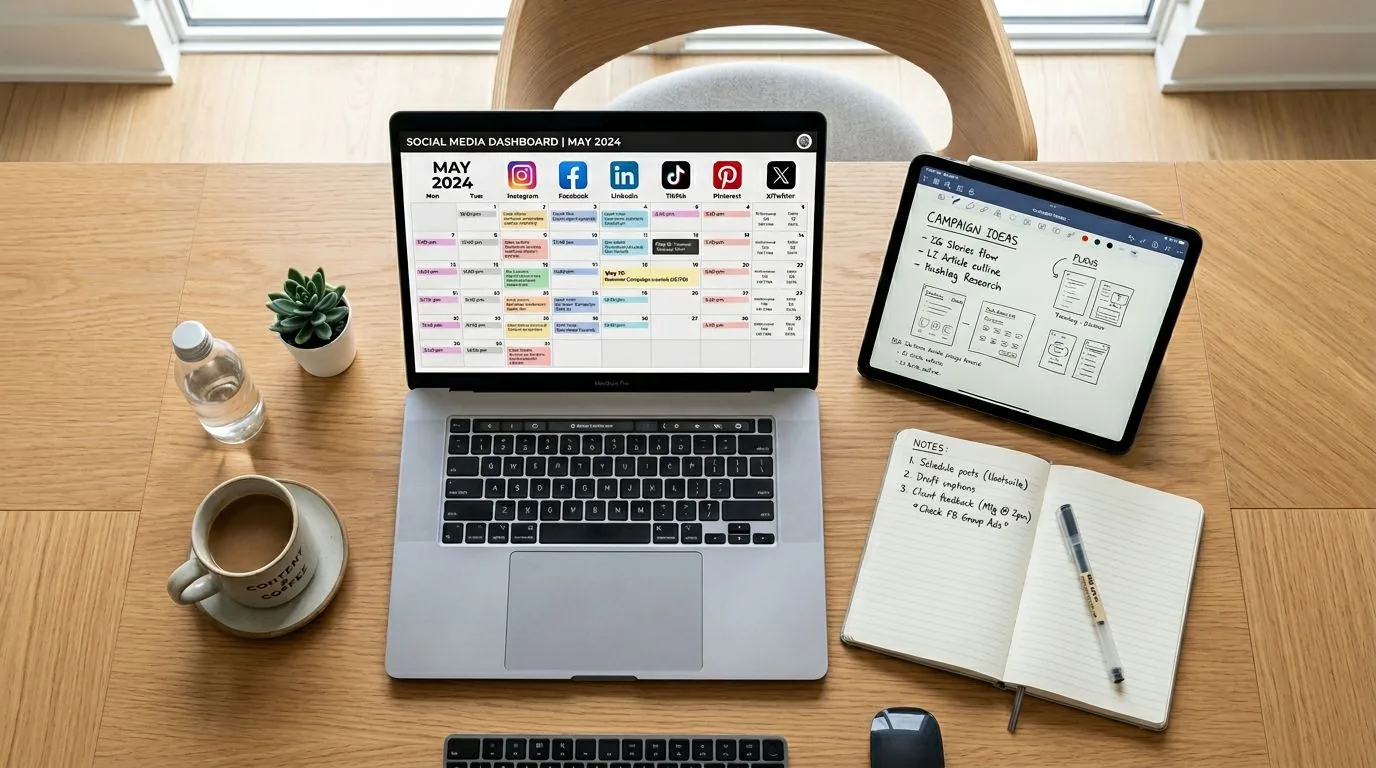
Third-party scheduling tools are useful when you post to multiple platforms or want features YouTube Studio does not offer, like content calendars, team approvals, or analytics dashboards.
| Tool | YouTube Shorts Support | Other Platforms | Starting Price |
|---|---|---|---|
| Buffer | Direct publish, .mp4/.mov/.webm | TikTok, Instagram, Facebook, X, LinkedIn | Free; paid from $6/mo |
| Later | Direct publish, 15s-3min length | TikTok, Instagram, Facebook, Pinterest | Free; paid from $25/mo |
| Hootsuite | Direct publish with analytics | TikTok, Instagram, Facebook, X, LinkedIn | From $99/mo |
| Sprout Social | Direct publish with reporting | TikTok, Instagram, Facebook, X, LinkedIn | From $249/mo |
When to Use a Third-Party Tool
- Cross-platform posting: You publish the same Short to YouTube, TikTok, and Instagram Reels.
- Team workflows: You need approval steps before content goes live.
- Content calendar view: You want a visual grid of all scheduled content across platforms.
- Analytics: You want engagement data from multiple platforms in one dashboard.
If you only post to YouTube, the native YouTube Studio scheduler is sufficient and free.
Beyond Scheduling: Full YouTube Shorts Automation
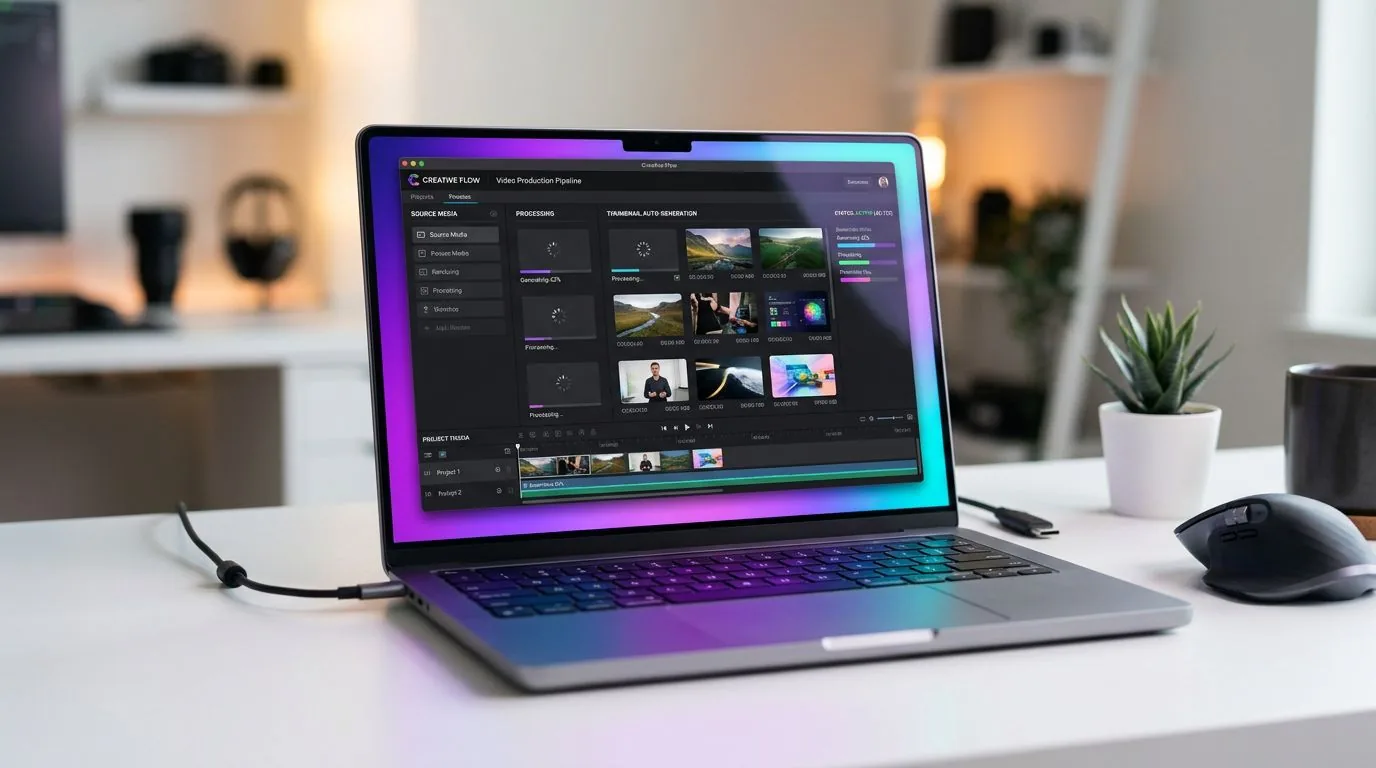
Scheduling tools publish videos you have already created. Full automation tools create the videos too. Platforms like FlowShorts generate scripts, AI visuals, voiceover, and captions, then publish the finished Short to YouTube on a schedule you set.
This approach works best for faceless channels in repeatable niches: motivational quotes, history facts, finance tips, tech explainers, and similar formats where consistent daily output matters more than trend-chasing. You define the niche, visual style, and posting frequency. The system handles everything from script to publish.
The difference between scheduling and automation is significant. With scheduling, you still spend time scripting, filming or assembling visuals, editing, adding captions, and then uploading to a scheduler. With full automation, you set parameters once and the platform produces new videos daily. For creators running multiple channels or managing content across YouTube, TikTok, and Instagram simultaneously, automation eliminates the production bottleneck entirely.
For a detailed breakdown of automation tools available, read our guide to automating your YouTube channel. To see how automated Shorts fit into a broader posting strategy, check our post on how many Shorts to post per day.
Create Faceless Videos on Autopilot
FlowShorts generates and posts AI videos to YouTube, TikTok & Instagram while you sleep.
Try FlowShorts Free →Explore YouTube Shorts automation options and FlowShorts pricing plans to find the right fit for your channel.
Best Times to Post YouTube Shorts
Scheduling only helps if you publish at the right times. Based on aggregate engagement data from YouTube creators, these windows tend to produce the highest initial engagement:
| Time Window | Why It Works | Best For |
|---|---|---|
| 12:00 PM - 2:00 PM | Lunch break browsing across time zones | US and European audiences |
| 5:00 PM - 7:00 PM | Post-work and post-school scrolling | All audiences |
| 8:00 PM - 10:00 PM | Evening relaxation and entertainment | Entertainment, lifestyle niches |
These are general guidelines based on aggregate data. Your best posting time depends on where your audience is located. Check YouTube Studio Analytics under the Audience tab to see when your specific subscribers are online, then schedule your Shorts for those windows.
A common strategy is to schedule Shorts 15-30 minutes before peak windows so YouTube has time to process and distribute the video. If your audience is split across time zones, stagger your posts: one Short in the morning for European viewers and another in the evening for US viewers.
Posting Frequency for Growth
Creators who post 3-5 Shorts per week see faster subscriber growth than those who post sporadically. Daily posting is ideal for channels focused on growth, but consistency matters more than volume. Pick a frequency you can sustain. For more data on optimal posting schedules, read our guide on how to get more views on YouTube Shorts.
Pre-Publish Checklist for Scheduled Shorts
Before scheduling any YouTube Short, verify these five elements:
- Hook (first 2 seconds): Does the opening frame give viewers a reason to keep watching? The Shorts feed is swipe-based, so your first frame determines whether someone stops or scrolls past.
- Title: Does it include a relevant keyword? YouTube uses the title for discovery in search and the Shorts feed.
- Description: Have you added 2-3 relevant hashtags and a brief description? Include a link to your channel or related long-form content.
- Thumbnail: YouTube auto-generates thumbnails for Shorts, but you can upload a custom one for better click-through in search results and channel pages.
- Timing: Is the Short scheduled during a peak engagement window for your audience?
YouTube Shorts Scheduling FAQ
Does scheduling YouTube Shorts affect views?
No. Scheduled Shorts receive the same algorithmic treatment as manually published ones. YouTube evaluates content quality, watch time, and engagement, not how the video was uploaded. Scheduling does not penalize or boost your video in any way.
How far in advance can you schedule YouTube Shorts?
YouTube Studio has no maximum scheduling window. You can schedule Shorts days, weeks, or months in advance. Third-party tools like Buffer and Later also support long-range scheduling with no hard limit.
Can you schedule YouTube Shorts on your phone?
Yes. The YouTube mobile app on both iOS and Android supports scheduling. When uploading a video, tap Visibility, then select Schedule and pick your date and time. The only limitation is that you cannot bulk upload multiple videos from the mobile app.
Ready to go beyond scheduling and automate your entire Shorts workflow? FlowShorts generates and auto-posts faceless YouTube Shorts, TikTok videos, and Instagram Reels on autopilot. Set your niche, connect your accounts, and let AI handle daily content creation while you focus on strategy and growth.