How to Edit Videos for YouTube Shorts, TikTok & Reels: Complete Workflow (2026)
The complete editing workflow for short-form video in 2026: platform specs, free vs paid tools, caption best practices, music and sound, export settings, and the no-editing alternative for faceless creators.
FlowShorts Team
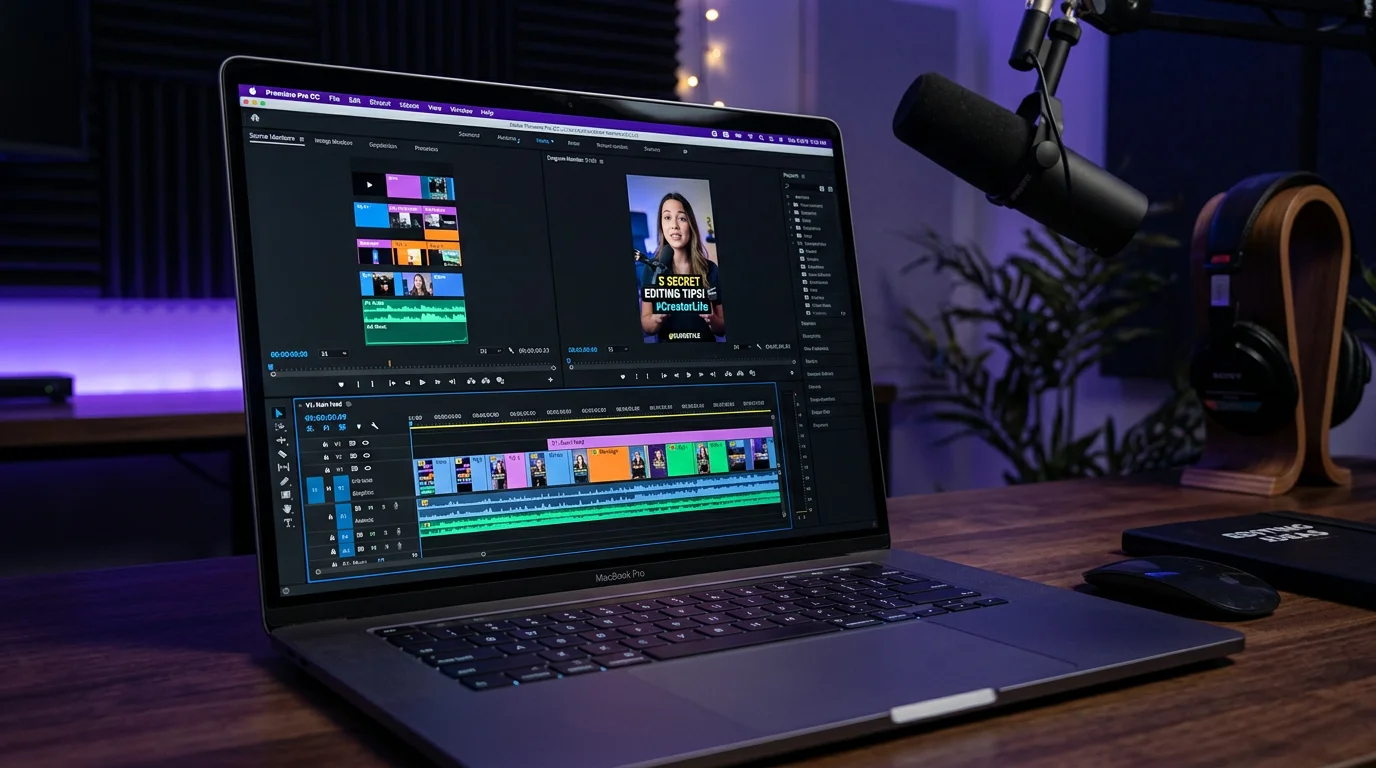
Editing short-form video is different from editing long-form. The pace is faster, the specs are strict, and captions aren't optional — they're required. Whether you use CapCut, DaVinci Resolve, or skip editing entirely with AI, this guide covers the complete workflow.
Platform Specs: Get These Right First
Every platform has slightly different requirements. Getting specs wrong means your video looks cropped, blurry, or gets rejected.
| Spec | YouTube Shorts | TikTok | Instagram Reels |
|---|---|---|---|
| Aspect ratio | 9:16 (vertical) | 9:16 | 9:16 |
| Resolution | 1080x1920 | 1080x1920 | 1080x1920 |
| Max length | 3 minutes | 10 minutes | 3 min (in-app) / 15 min (upload) |
| Frame rate | 30 or 60 fps | 30 or 60 fps | 30 fps preferred |
| Format | MP4, MOV | MP4, MOV | MP4, MOV |
| Max file size | 256 MB | 287.6 MB | 4 GB |
| Safe zone | Top/bottom 250px may be covered by UI | Bottom 150px covered by captions/UI | Bottom 120px covered by UI |
The universal setting: 1080x1920, 30fps, MP4 works on all three platforms. Export once, upload everywhere.
For detailed specs per platform, see: YouTube Shorts Dimensions | TikTok Aspect Ratio | Instagram Reels Size
The Editing Workflow (Step by Step)
Step 1: Import & Arrange
- Import your footage, images, or AI-generated visuals into a 9:16 timeline
- Arrange clips in story order: hook → main content → CTA
- Trim ruthlessly — every second must earn its place. If a clip doesn't add value, cut it.
Step 2: Add Voiceover or Audio
- Record your own voiceover, or use AI TTS (How to Get AI Voice on Shorts)
- Sync visuals to audio — visual changes should happen on beat or at key narration points
- Ensure voiceover is clear and audible above any background music
Step 3: Add Captions (Critical)
85% of social video is watched with sound off. Captions are not optional — they directly impact watch time and completion rate.
Create Faceless Videos on Autopilot
FlowShorts generates and posts AI videos to YouTube, TikTok & Instagram while you sleep.
Try FlowShorts Free →Best practices:
- Word-by-word animation (TikTok style) outperforms static subtitles for retention
- Large, high-contrast text — if you can't read it on a phone screen from arm's length, it's too small
- Position in the center-upper area — the bottom 150px is covered by platform UI on TikTok/Reels
- 2-3 words per line max — short bursts are easier to read than full sentences
Caption tools: CapCut (free auto-captions), Descript (transcript-based), VEED (browser-based).
Step 4: Add Background Music
- Keep music at 10-20% volume relative to voiceover — it should enhance, not compete
- Use royalty-free music to avoid copyright claims (YouTube's Content ID is aggressive)
- Match music energy to content energy: upbeat for motivation, calm for education, dramatic for stories
- For YouTube Shorts monetization: using licensed music splits your revenue with publishers. Original audio earns 2x more per view.
Step 5: Add Effects (Sparingly)
- Zoom cuts every 3-5 seconds break visual monotony and maintain attention
- Text highlights on key words in captions (yellow or colored text on important phrases)
- Transitions between scenes — simple cuts or fades. Avoid flashy transitions that distract.
- Sound effects — subtle whoosh or pop sounds on transitions can increase perceived quality
Step 6: Export & Upload
Export settings for all platforms:
- Resolution: 1080x1920
- Frame rate: 30fps
- Format: MP4 (H.264 codec)
- Bitrate: 10-15 Mbps for HD quality without huge file size
Upload to all 3 platforms from the same file. Remove any platform watermarks if cross-posting.
Free vs Paid Editing Tools
Create Faceless Videos on Autopilot
FlowShorts generates and posts AI videos to YouTube, TikTok & Instagram while you sleep.
Try FlowShorts Free →| Tool | Price | Best For | Auto-Captions |
|---|---|---|---|
| CapCut | Free | Social media creators, TikTok/Reels | Yes (excellent) |
| DaVinci Resolve | Free | Professional quality, color grading | No (use separately) |
| Clipchamp | Free | Browser-based, Windows users | Yes |
| iMovie | Free | Mac/iOS users, simple edits | No |
| Filmora | $50/yr | AI tools, beginner-friendly desktop | Yes |
| Premiere Pro | $23/mo | Professional, full control | Yes (via transcription) |
For a detailed comparison, see our Best Video Editing Software for Beginners guide.
Editing by Content Type
| Content Type | Editing Style | Key Techniques |
|---|---|---|
| Talking head | Jump cuts every 3-5 sec | Zoom cuts, B-roll inserts, caption highlights |
| Faceless narration | Image/clip per scene | Ken Burns effect (slow zoom), transitions between scenes |
| Tutorial/how-to | Screen recording + voiceover | Cursor highlights, step annotations, zoom to key areas |
| Trend/reaction | Fast cuts, effects-heavy | Green screen, split screen, sound effects on beats |
| Story/narrative | Pacing-driven | Tension building, pause before reveal, music swells |
Common Editing Mistakes
- Starting with a logo or intro. You have 1-2 seconds before viewers scroll. Start with your hook, not your brand.
- No captions. 85% watch muted. No captions = 85% of viewers don't understand your content.
- Over-editing. Flashy transitions and excessive effects distract from the message. Simple, clean edits perform best.
- Wrong aspect ratio. Horizontal (16:9) video on Shorts/Reels looks terrible — always edit in 9:16 vertical.
- Text in the danger zone. Keep important text/captions out of the bottom 150px — platform UI covers it.
- Music too loud. Background music should be barely noticeable, not competing with voiceover.
The No-Editing Alternative
If editing isn't your strength — or you want to post daily without the production overhead — AI tools handle the entire editing process automatically.
FlowShorts generates complete short-form videos: AI writes the script, generates unique visuals, records voiceover, adds animated captions, layers background music, renders at 1080x1920, and auto-posts to all 3 platforms. No timeline, no export settings, no manual uploading.
This isn't for creators who enjoy editing — it's for creators who want output without the process. Try it →
Related Guides
- Best Video Editing Software for Beginners
- 50 Video Editing Tips
- YouTube Shorts Dimensions & Specs
- TikTok Aspect Ratio Guide
- Instagram Reels Size & Dimensions
- How to Get AI Voice on Shorts
- Best Hooks for Short-Form Videos
- How to Write a Video Script
- Speech Time Calculator