TikTok Overlays: How to Use Them + Free Downloads (2026)
Everything you need to know about TikTok overlays — what they are, how to add them, where to find free overlays, and how AI tools can handle overlays automatically.
FlowShorts Team
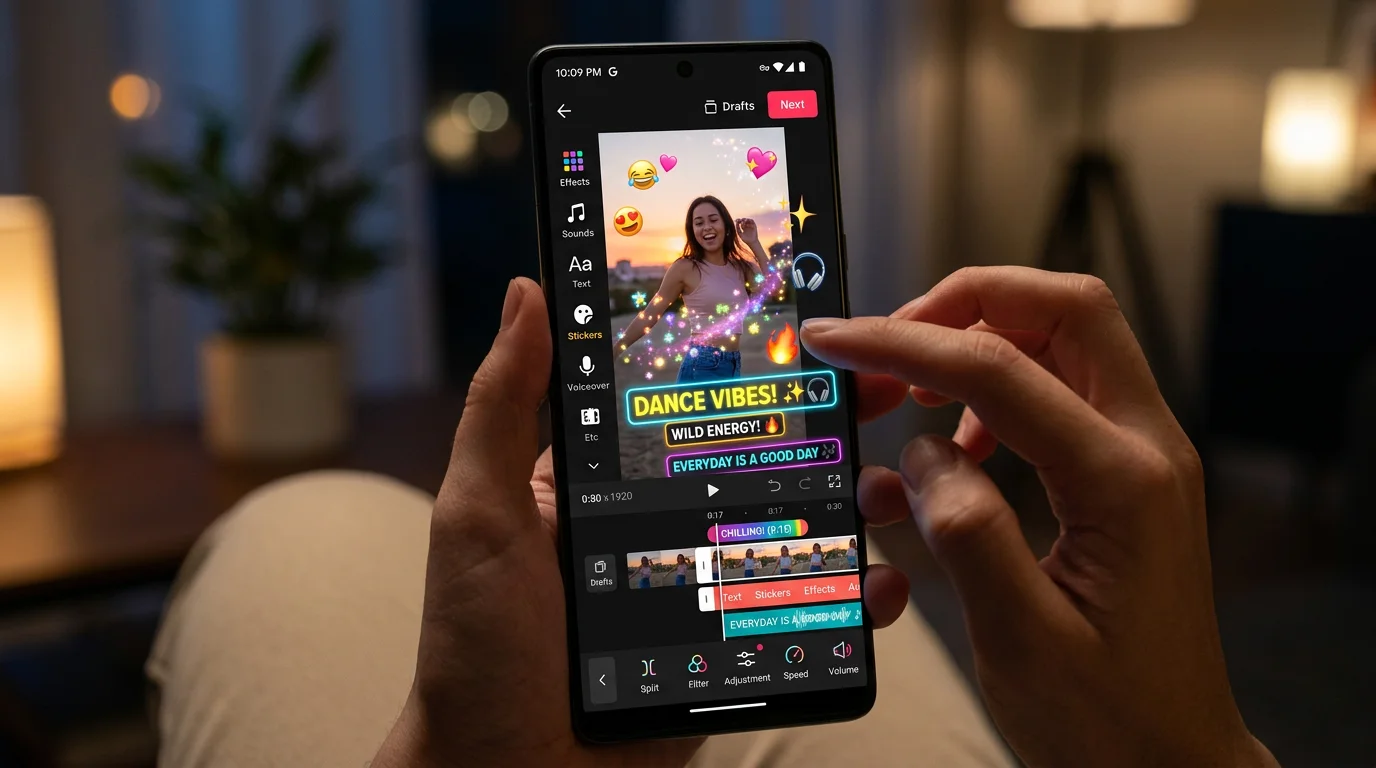
If you've ever watched a TikTok video and wondered how creators add those glowing text captions, particle effects, or cinematic color washes over their footage — that's TikTok overlays at work. Overlays are one of the fastest ways to make a video feel polished, on-trend, and worth watching all the way through. Whether you're new to making TikTok videos or you've been posting for a while and want to level up your production quality, this guide covers everything: what tik tok overlays are, how to add them step by step, where to find free ones, and how AI tools can handle overlays for you automatically.
Key Takeaways
- TikTok overlays are visual layers added on top of your video — including text, emoji, effects, green screen loops, and animated captions.
- You can add overlays directly inside the TikTok app using the Effects and Text tools — no third-party software required.
- Free TikTok overlays are available from TikTok's built-in effects library, CapCut templates, and AI video generators like FlowShorts.
- AI tools like FlowShorts build overlays — animated captions, particle VFX, and scene transitions — into every video automatically, so you never have to add them manually.
What Are TikTok Overlays?
TikTok overlays are visual elements layered on top of a video clip — such as text captions, emoji, color effects, animated graphics, or green screen loops — that appear during playback without replacing the underlying footage. They sit between the raw video and the viewer, adding context, style, or emphasis to what's on screen. Overlays can be applied inside TikTok's native editor, in third-party apps like CapCut, or generated automatically by AI video tools.
Think of overlays as the difference between a raw clip and a finished video. A talking-head video with no overlays is just footage. That same clip with bold animated captions, a subtle particle effect in the background, and an emoji reaction in the corner is a TikTok. According to TikTok for Business data, videos with on-screen text or captions see up to 55% higher engagement than those without — which is why overlays matter so much for creator growth.
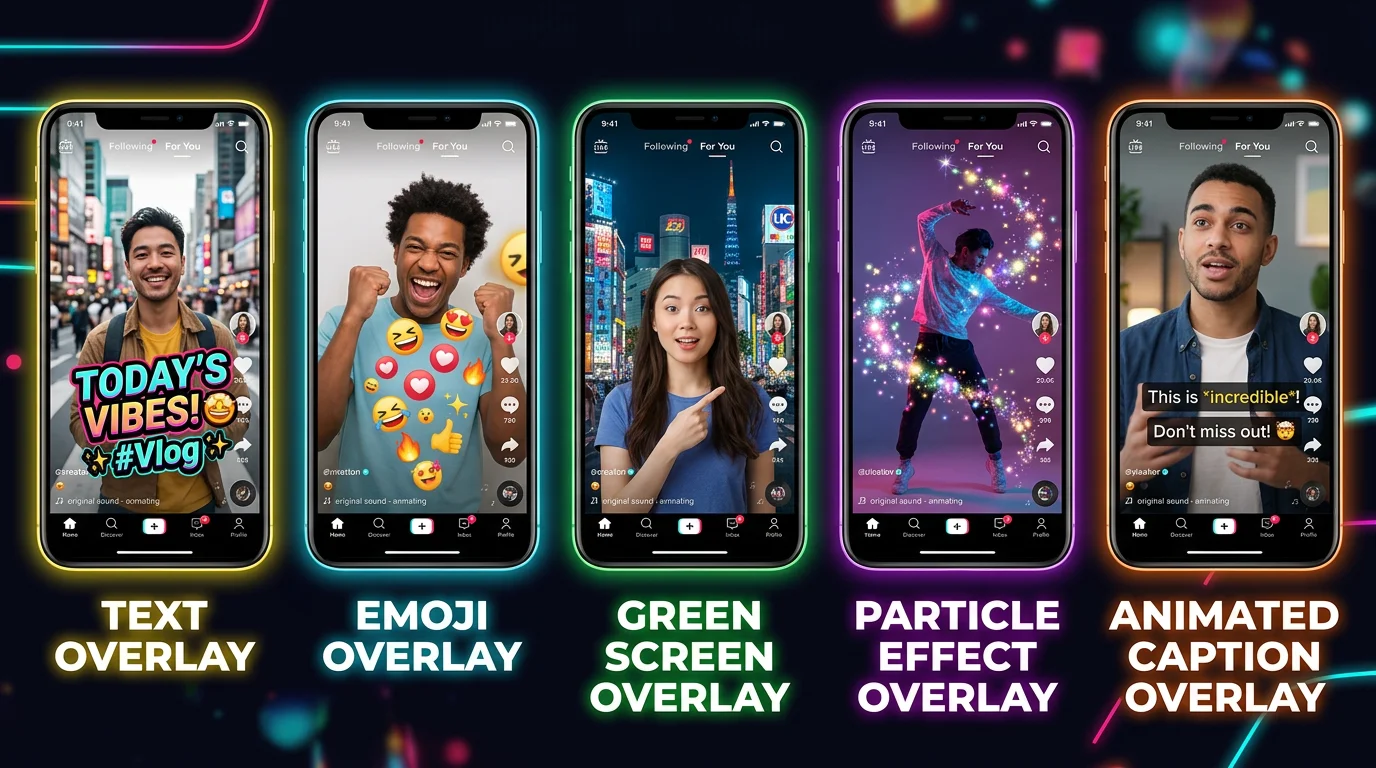
5 Types of TikTok Overlays
Not all TikTok overlays work the same way or serve the same purpose. Here are the five main types you'll encounter — and when to use each one.
1. Text Overlays
Text overlays are the most common type. They display words, phrases, or captions on top of the video — either static or animated. Creators use them to add context ("POV: it's 3am"), reinforce spoken narration, or communicate with viewers who watch on mute. TikTok reports that more than 40% of users scroll with sound off, making text overlays effectively non-optional for reach.
2. Emoji Overlays
Emoji overlays place one or more emoji icons over the video, often with movement or bounce animations. They're a fast way to inject personality, signal emotion, or highlight a moment without adding words. A well-placed emoji can do the work of an entire sentence.
3. Effect Overlays
Effect overlays use TikTok's built-in effects library to apply visual filters, color grades, lens distortions, or stylized looks across the entire frame. Examples include the "Vintage" color wash, glitch effects, or the "Bling" sparkle filter. These are applied as a layer over your base footage and change the overall mood or aesthetic of the video.
4. Green Screen Overlays
Green screen overlays — sometimes called "duet overlays" or "background overlays" — use TikTok's green screen effect to place a second video, image, or looping clip as the background behind the creator. This is widely used in commentary videos, reaction content, and faceless TikTok videos where a visual background replaces the need to show the creator's face.
5. Animated Caption Overlays
Animated caption overlays are the TikTok-style word-by-word captions that pulse or pop in sync with speech. These go beyond static subtitles — each word highlights as it's spoken, keeping viewers locked in. Styles like "Hormozi" (bold yellow text, black outline), "MrBeast" (thick white text, high contrast), and "Minimal" have become default looks for high-performing short-form content in 2026.
How to Add Overlays on TikTok (Step by Step)
Adding overlays inside the TikTok app is straightforward once you know where each tool lives. Here's the complete process for a video you're creating or uploading from your camera roll.
-
Open TikTok and create or upload a video.
Tap the + button at the bottom center of the TikTok home screen. Record a new clip using the in-app camera, or tap Upload in the bottom right to select an existing video from your phone's camera roll. Once your clip is loaded, tap Next to open the editing screen.
-
Tap the "Effects" button.
On the right-side toolbar of the editing screen, tap Effects (the magic wand icon). This opens TikTok's full effects library, organized into tabs: Trending, New, Portrait, Animal, and more. Effects overlays are applied here — they sit on top of your video as a full-frame visual layer.
Create Faceless Videos on Autopilot
FlowShorts generates and posts AI videos to YouTube, TikTok & Instagram while you sleep.
Try FlowShorts Free → -
Browse the overlay effects library.
Scroll through the effects tabs to find what you want. The Trending tab shows the most popular overlays at any given moment — these are the effects you're seeing most often on your For You Page. You can also search by name if you spotted a specific effect on another creator's video and want to find it. Tap any effect to preview it on your clip in real time.
-
Tap to apply the overlay.
Once you find an effect you want, tap it once to preview. If you're happy with how it looks, tap the checkmark or simply swipe back to the editing screen — the effect is now applied to your video. To use it only on a specific segment rather than the full clip, use the Timeline control to set start and end points for the effect.
-
Adjust timing and positioning.
For effect overlays, use the clip timeline at the bottom of the editor to control exactly when the effect appears and disappears. Drag the handles on the effect bar to shorten or extend its duration. For full-frame effects, positioning is fixed — but for sticker-style overlays, you can drag them around the screen and pinch to resize.
-
Add text overlays separately via the "Text" tool.
Close the Effects panel and tap Text (the "Aa" icon) in the right-side toolbar. Type your caption or on-screen text. Choose a font, color, alignment, and background style. Tap Done, then drag the text box to position it anywhere on the frame. To control timing, tap the text box and select Set Duration — this lets you make text appear and disappear at specific moments in the video, which is key for animated caption-style overlays.
Once you're done layering your overlays, tap Next to move to the publishing screen, add your caption and hashtags, and post. The full editing process — from upload to publish — takes most creators under five minutes once they know the workflow.
Where to Find Free TikTok Overlays
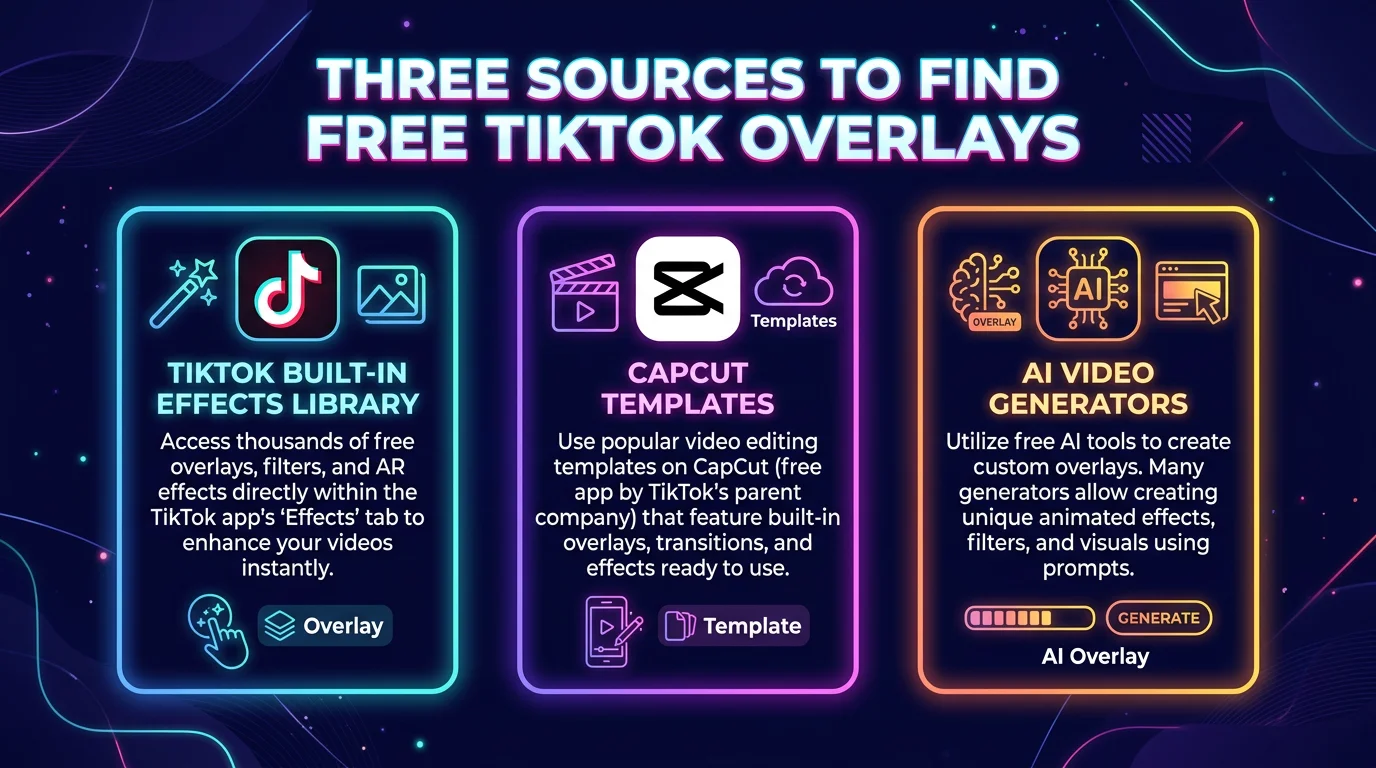
The good news: most of the best TikTok overlays cost nothing. Here are the three main places to find free TikTok overlays in 2026.
1. TikTok's Built-In Effects Library
TikTok's native effects library has thousands of free overlays built directly into the app. Access it from the Effects panel while editing any video. The library updates constantly with new trending effects, seasonal overlays (holiday themes, trending audio-reactive effects), and creator-submitted effects. Everything in the built-in library is completely free — no subscription or download required. The limitation is that you can only use these overlays within TikTok's editor and can't export them to other platforms.
2. CapCut Templates
CapCut — TikTok's official companion editing app — offers a large library of free overlay templates. These range from animated caption presets to cinematic color grades, VHS effects, and particle loops. You can apply a CapCut template to your video in minutes, export the finished clip, and then upload it to TikTok. CapCut overlays work across all three short-form platforms — YouTube Shorts and Instagram Reels included — making it a versatile free option for multi-platform creators. Check the CapCut Template Center for the latest free overlay templates.
3. AI Video Tools Like FlowShorts
AI-powered video generators like FlowShorts take overlays a step further: instead of finding and applying overlays manually, the AI builds them directly into every video it generates. FlowShorts automatically adds animated word-by-word captions (synced to the AI-generated voiceover), particle VFX effects, and scene transitions as part of the video production pipeline — no manual editing required. This is the most efficient route for creators who want consistent, professional overlays across high volumes of content without spending time in an editor. Given that TikTok now has over 1.7 billion monthly active users and the competition for attention is steep, having overlays built into your production workflow is a meaningful advantage.
Best Overlays for TikTok Videos in 2026
Overlay trends shift quickly on TikTok, but a few styles have proven staying power heading into 2026. These are the overlay types consistently appearing on high-performing videos across niches.
Animated Word-by-Word Captions
This is the single most impactful overlay trend in short-form video right now. Word-by-word captions — where each word pops or highlights in sync with the voiceover — dramatically increase watch time by giving viewers two simultaneous ways to follow along: audio and visual. The "Hormozi style" (bold yellow text, heavy black stroke, white background block) and "MrBeast style" (thick white text, black outline, mixed caps) are the two dominant looks in 2026. If you do nothing else, add animated captions to every video.
Particle and Light Leak Effects
Subtle particle effects — floating dust, bokeh light leaks, or soft snow — add a cinematic quality to videos without distracting from the main content. These work especially well for motivational content, lifestyle videos, and any niche where a premium or aspirational feel matters. Particle overlays are available in both TikTok's effects library and CapCut's template center.
Green Screen Background Loops
Create Faceless Videos on Autopilot
FlowShorts generates and posts AI videos to YouTube, TikTok & Instagram while you sleep.
Try FlowShorts Free →Using TikTok's green screen effect to place a looping video or animated background behind the creator has become a staple format for commentary, education, and faceless content. Stock footage sites like Pexels and Pixabay offer free looping clips that work perfectly as green screen overlay backgrounds. This format keeps the frame visually interesting even when the creator is just talking to camera.
Lower-Third Text Bars
Lower-third overlays — a text box anchored to the bottom third of the frame, often with a colored background bar — are borrowed from broadcast TV and have found a strong home in TikTok education and news-style content. They're clean, credible, and make complex information digestible at a glance.
Progress Bars and Countdown Timers
Progress bar overlays — a thin bar across the top or bottom of the frame that fills as the video plays — are a retention trick that has measurable impact. They tell viewers exactly how much content is left, reducing drop-off at the mid-point of longer videos. Several CapCut templates include progress bars as a built-in overlay option.
How FlowShorts Handles Overlays Automatically
For creators who want professional overlays without the manual editing work, FlowShorts is built specifically for this workflow. FlowShorts is an AI-powered faceless short-form video generator that creates complete videos — script, voiceover, images, captions, effects, transitions — and auto-posts them to TikTok, YouTube Shorts, and Instagram Reels on a schedule.
Overlays are baked into the FlowShorts production pipeline at two levels:
- Animated caption overlays — Every FlowShorts video includes word-by-word animated captions, generated by syncing a Whisper speech-to-text transcription against the AI voiceover. Creators can choose from six caption styles: Minimal, Bold, Classic, Boxed, Hormozi, and MrBeast. The captions are rendered directly into the final MP4, not added as a layer in the editor.
- VFX particle overlays — FlowShorts' AI metadata layer selects an appropriate particle effect for each video based on the content category and tone. Motivational videos get light particle effects; tech content gets clean minimal overlays. The VFX is applied in the Remotion render pipeline alongside scene transitions and background music.
The result is a video that looks like it went through a full CapCut edit — with the animated captions and visual effects that drive retention — without any manual work from the creator. FlowShorts plans start at $19/month (Starter: 8 videos/month), with Creator ($39/month, 30 videos) and Pro ($69/month, 60 videos) tiers for higher-volume creators.
For creators running faceless TikTok channels at scale, this is the most practical way to maintain consistent overlay quality across every post without spending hours in an editor each week.
Try FlowShorts Free — Overlays IncludedFrequently Asked Questions About TikTok Overlays
How do I get overlays on TikTok?
To get overlays on TikTok, tap the + button to open the camera or upload a video, then tap Effects on the right-side toolbar. Browse TikTok's built-in effects library and tap any effect to apply it as an overlay on your video. For text overlays, tap the Text (Aa) icon instead. Both tools are free and available to all TikTok accounts.
What are the best TikTok overlays?
The best TikTok overlays in 2026 are animated word-by-word caption overlays (Hormozi and MrBeast styles are the most popular), particle and light leak effect overlays for a cinematic feel, green screen background loops for faceless and commentary content, and lower-third text bar overlays for educational videos. Animated captions have the biggest impact on watch time and retention of any overlay type.
Are TikTok overlays free?
Yes — TikTok overlays are free. TikTok's built-in effects library contains thousands of free overlays accessible directly inside the app. CapCut, TikTok's companion editing app, also offers free overlay templates. Some premium third-party editing apps charge for advanced overlay packs, but the overlays available natively in TikTok and CapCut cost nothing to use.
How do you add a video overlay on TikTok?
To add a video overlay on TikTok — such as a second clip playing on top of your footage — use TikTok's Green Screen effect. Open the Effects panel, search for "Green Screen," and select it. This lets you place another video or image as a background layer behind you. Alternatively, use TikTok's Duet feature to layer your video alongside another creator's clip in a split-screen overlay format.
Can you download TikTok overlays?
TikTok's built-in overlays can't be downloaded as standalone files — they only work within TikTok's editor. However, you can download finished TikTok videos (with overlays already applied) by saving them from the app. For downloadable overlay files you can use in external editors, look for free overlay packs on sites like Motion Array, Mixkit, or CapCut's template library, which exports finished videos with overlays baked in.
Start Using TikTok Overlays Today
TikTok overlays — whether text captions, particle effects, or green screen backgrounds — are one of the highest-leverage improvements you can make to your video content. They increase retention, improve accessibility for viewers watching on mute, and make your videos look like they came from a professional production setup rather than a phone camera.
The fastest path to great overlays is to use tools that build them in automatically. FlowShorts generates complete faceless short-form videos with animated captions and VFX overlays included — then auto-posts them to TikTok, YouTube Shorts, and Instagram Reels on your behalf. You don't have to touch an editor. You don't have to spend an hour manually adding captions. The overlays are just there, on every video, every time.
Plans start at $19/month for 8 videos. At that output, you're posting twice a week to all three platforms — consistently, with professional overlays — for less than the cost of a single sponsored post.
Get Started with FlowShorts — Free Trial Available