How to Reset Your Instagram Algorithm in 2026 (Step-by-Step)
Step-by-step guide to resetting your Instagram algorithm. Clear search history, mark Not Interested, retrain your Feed, Reels, and Explore page in 3-7 days.
FlowShorts Team
If your Instagram feed is full of content you don't care about — or your Reels are reaching 200 people when they used to reach 20,000 — your algorithm needs a reset. Instagram's recommendation system learns from every interaction you make: likes, watches, searches, pauses, saves, and DMs. Over time, that profile drifts. Old curiosity clicks and accidental likes quietly corrupt what the algorithm thinks you want.
The good news: you can retrain it. This guide covers two scenarios — resetting as a viewer (your feed shows the wrong content) and resetting as a creator (your content reaches the wrong audience). Six concrete steps, results in 3–7 days.
Can You Actually Reset the Instagram Algorithm?
Yes — though there's no single "reset" button. Resetting the algorithm means clearing the behavioral signals Instagram has collected about you and replacing them with new ones. Instagram stores your interaction history on their servers: what you searched, what you watched, what you skipped, who you messaged. By systematically clearing old signals and building new ones, you force the recommendation system to re-learn your preferences from scratch.
Instagram also added a native "Reset suggested content" option in 2025 (Settings → Suggested content → Reset all) — more on that in Step 6.
The 6 Steps to Reset Your Instagram Algorithm
Step 1: Clear Your Search History
Your search history is one of the strongest interest signals Instagram uses. Every term you search directly trains what Explore shows you and which accounts get recommended. Clearing it is the fastest single action you can take.
- Open Instagram → tap your Profile
- Tap the three lines (top-right) → Your activity
- Tap Recent searches
- Tap Clear all (top-right)
After clearing, your Explore page will temporarily show generic trending content instead of niche-targeted suggestions. That's normal — it means the old signal is gone. You'll rebuild it through Step 5.
Step 2: Clear the App Cache
The app cache stores locally cached behavioural data — scroll position, recently viewed profiles, session-level preferences. Clearing it removes this local layer. It's a supporting step, not a complete fix on its own, but it ensures the app starts fresh alongside your server-side reset.
On iPhone:
- Settings → General → iPhone Storage
- Tap Instagram
- Tap Offload App (preserves your account, removes cached data)
- Tap Reinstall App
On Android:
- Settings → Apps → Instagram → Storage
- Tap Clear Cache
- Do not tap Clear Data — that logs you out and removes local app settings
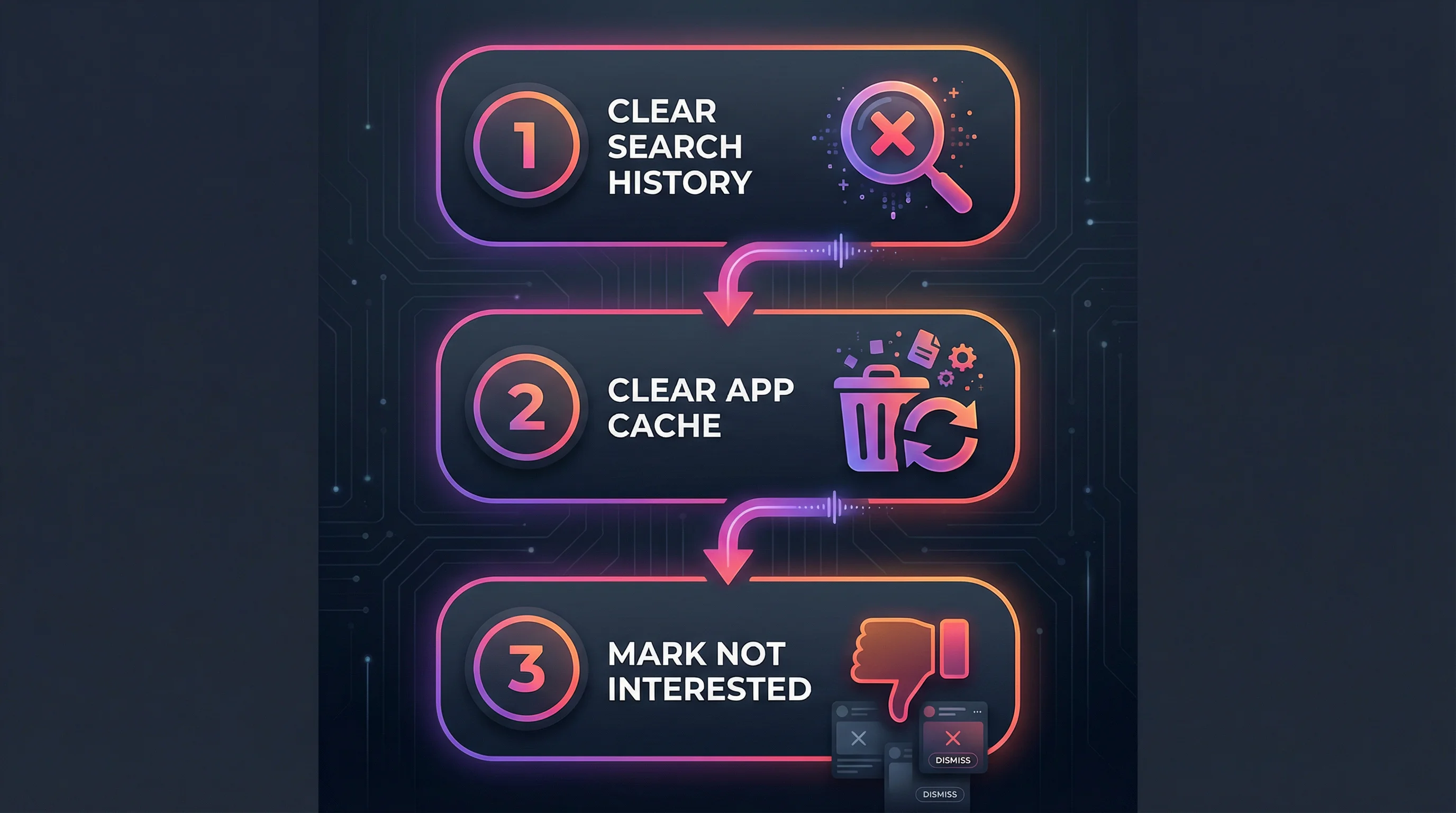
Step 3: Mark "Not Interested" Aggressively
"Not interested" is the most direct negative signal you can send to Instagram's recommendation system. It carries more weight than simply scrolling past content — it's an explicit instruction to stop showing content like this.
On Feed posts:
- Tap the three dots on any post → Not interested
On Reels:
- Tap the three dots → Not interested
- Instagram will also ask if you want to see less of this topic or this account — choose both
On Explore:
- Long-press any post → Not interested
Spend 10–15 minutes going through your Reels feed and Explore page and marking everything that doesn't match what you actually want. The Reels algorithm responds to "Not interested" signals within 24–48 hours — noticeably faster than it responds to positive engagement. Be aggressive: 20–30 marks in one session creates a clear signal.
Step 4: Unfollow and Mute Strategically
Instagram uses your follow list as a baseline interest map — even accounts you never engage with still influence your recommendations. A follow list of 800 accounts with genuine engagement on only 50 creates noise that confuses the algorithm.
Find your least-engaged follows:
Let AI Handle Your Posting Schedule
FlowShorts auto-posts videos at the optimal time to YouTube Shorts, TikTok & Instagram Reels.
Set Up Auto-Posting →- Go to your Profile → Following
- Tap Least Interacted With (top of the list)
- Review accounts you haven't engaged with in months — unfollow or mute
Mute vs. unfollow: Muting keeps the follow (preserves the relationship) but removes that account's posts and stories from your feed. It's the right choice for accounts you want to stay connected to but don't want influencing your algorithm. Tap their profile → three dots → Mute → Mute posts and stories.
Removing 50–100 disengaged follows gives the algorithm a much cleaner signal of your actual interests.
Step 5: Retrain With Intentional Engagement
Clearing old signals is half the job. The other half is replacing them with accurate new ones. For the 3–5 days after your reset, engage deliberately:
| Action | Signal Strength | What It Tells the Algorithm |
|---|---|---|
| Save a post | Very strong | "This content has lasting value to me" |
| Watch a Reel to the end | Very strong | "I was engaged enough to watch fully" |
| Replay a Reel | Strong | "I liked it enough to watch twice" |
| Share to DM | Strong | "This is relevant to someone I know" |
| Comment | Medium | "This prompted a response from me" |
| Like | Weak | "I noticed this" |
| Search a topic | Direct | Immediate interest classification |
What to avoid during the retrain window: Hate-watching content you dislike, curiosity-clicking topics you don't actually want in your feed, and liking content passively. These are exactly how the algorithm drifted in the first place.
After 3–5 days of intentional engagement, your Feed, Reels tab, and Explore should reflect your actual interests.
Step 6: Use Instagram's Native Algorithm Controls
Instagram has built direct algorithm controls into the app that most users haven't found:
Reset Suggested Content (Newest Feature)
- Settings → Suggested content
- Tap Reset all suggested content
This tells Instagram to start fresh with content recommendations across Explore, Reels, and suggested accounts — their closest equivalent to a hard reset button.
Sensitive Content Control
- Settings → Suggested content → Sensitive content control
- Set to Less to filter edgy, upsetting, or controversial content from Explore and Reels
Following and Favorites Feed
Tap the Instagram logo at the top of your Feed → switch to Following (strictly chronological, only accounts you follow) or Favorites (a curated list of starred accounts). These modes bypass the recommendation algorithm entirely for a cleaner experience during your reset period.
Content Preferences on Reels
On any Reel → three dots → select Interested or Not interested. Using both signals together — marking unwanted content as "Not interested" while marking desired content as "Interested" — is the fastest way to retrain the Reels algorithm specifically.

How Long Does an Instagram Algorithm Reset Take?
| Action | Impact Speed | What Changes |
|---|---|---|
| Clear search history + cache | Immediate | Explore resets to generic trending |
| Reset suggested content (native) | Within hours | Suggested accounts and content refreshes |
| Mark 20–30 "Not interested" | 24–48 hours | Reels feed noticeably changes |
| Unfollow/mute disengaged accounts | 2–3 days | Feed cleans up |
| Intentional new engagement (3–5 days) | 3–7 days | Reels, Explore, and Feed reflect new interests |
| Full algorithm overhaul | 1–2 weeks | Recommendations feel completely recalibrated |
Most people see meaningful changes within 48 hours. A complete overhaul — where every surface (Feed, Stories, Reels, Explore) reflects your updated preferences — takes 1–2 weeks of consistent new behavior.
Reset Scenarios: Specific Situations
Resetting After a Shadowban
A shadowban restricts your content's reach without notifying you — posts stop appearing in hashtag results and Explore. Common causes: using banned hashtags, posting too fast, or getting mass-reported. To recover:
- Stop posting for 48–72 hours
- Remove any posts that may have triggered the restriction (check which posts have unusual reach drops in Insights)
- Remove banned hashtags from recent posts
- Resume posting at a normal pace — 1 Reel per day maximum
- Engage genuinely with accounts in your niche for 3–5 days before expecting reach to recover
Resetting If You're Reaching the Wrong Audience as a Creator
If your content reaches a wide audience but gets poor engagement rate, the algorithm has classified your account into the wrong category. Fix:
Let AI Handle Your Posting Schedule
FlowShorts auto-posts videos at the optimal time to YouTube Shorts, TikTok & Instagram Reels.
Set Up Auto-Posting →- Post 7–10 Reels tightly focused on your core niche with no deviation
- Use 3–5 highly specific niche hashtags (not broad ones)
- Engage daily with 5–10 accounts in your exact niche — comments, replies to Stories
- Check your audience demographics in Insights — if location or age is wildly off, your content may be ranking for the wrong search intent
For a full strategy reset, see our Instagram marketing strategy playbook.
Resetting After Buying Followers or Fake Engagement
Purchased followers don't engage, which tanks your engagement rate and signals to the algorithm that your content isn't worth distributing. Recovery is slow but possible:
- Remove fake followers (use a tool like HypeAuditor to identify them, then remove individually)
- Expect 3–4 weeks of reduced reach as the algorithm recalibrates to your real engagement ratio
- Focus on saves and DM shares — the engagement metrics least correlated with fake accounts
Resetting If Your Feed Is Stuck on One Topic
This happens when one heavy-engagement session — binge-watching fitness Reels, researching a topic — permanently skews your recommendations. Mark every post in that topic as "Not interested," clear search history, and actively search for and engage with 3–4 other topics you actually want in your feed. The algorithm corrects within 48–72 hours.
How to Contact Instagram Support About Algorithm Issues by Country
For serious issues — content incorrectly suppressed, account restrictions, verified algorithm penalties — here's how to reach Instagram support in each major region:
| Region | Best Support Channel | Access Path | Typical Response |
|---|---|---|---|
| United States | In-app report + Help Center | Settings → Help → Report a Problem | 3–7 days (automated) |
| United Kingdom | In-app report + Help Center | Settings → Help → Report a Problem | 3–7 days |
| European Union | DSA complaint portal (stronger rights) | help.instagram.com → DSA appeals | 5–14 days (legally obligated) |
| Australia | In-app report + eSafety Commissioner | esafety.gov.au if no response in 14 days | 7–14 days |
| Canada | In-app report + Help Center | Settings → Help → Report a Problem | 3–7 days |
| India | In-app report + Grievance Officer | help.instagram.com/contact (India grievance form) | 24–72 hours (legally required) |
| All other regions | In-app report | Settings → Help → Report a Problem | 3–10 days |
Note: EU users have the strongest rights under the Digital Services Act — Instagram is legally required to provide an explanation for content suppression and a means to appeal. If you're in the EU and your content was restricted without explanation, use the DSA appeals path before trying other channels.
Resetting the Algorithm as a Creator
If you're a creator and the problem is your content reaching the wrong audience — not your personal feed — the reset approach is different. You can't change your followers' algorithms, but you can optimize your output to re-align with the right audience:
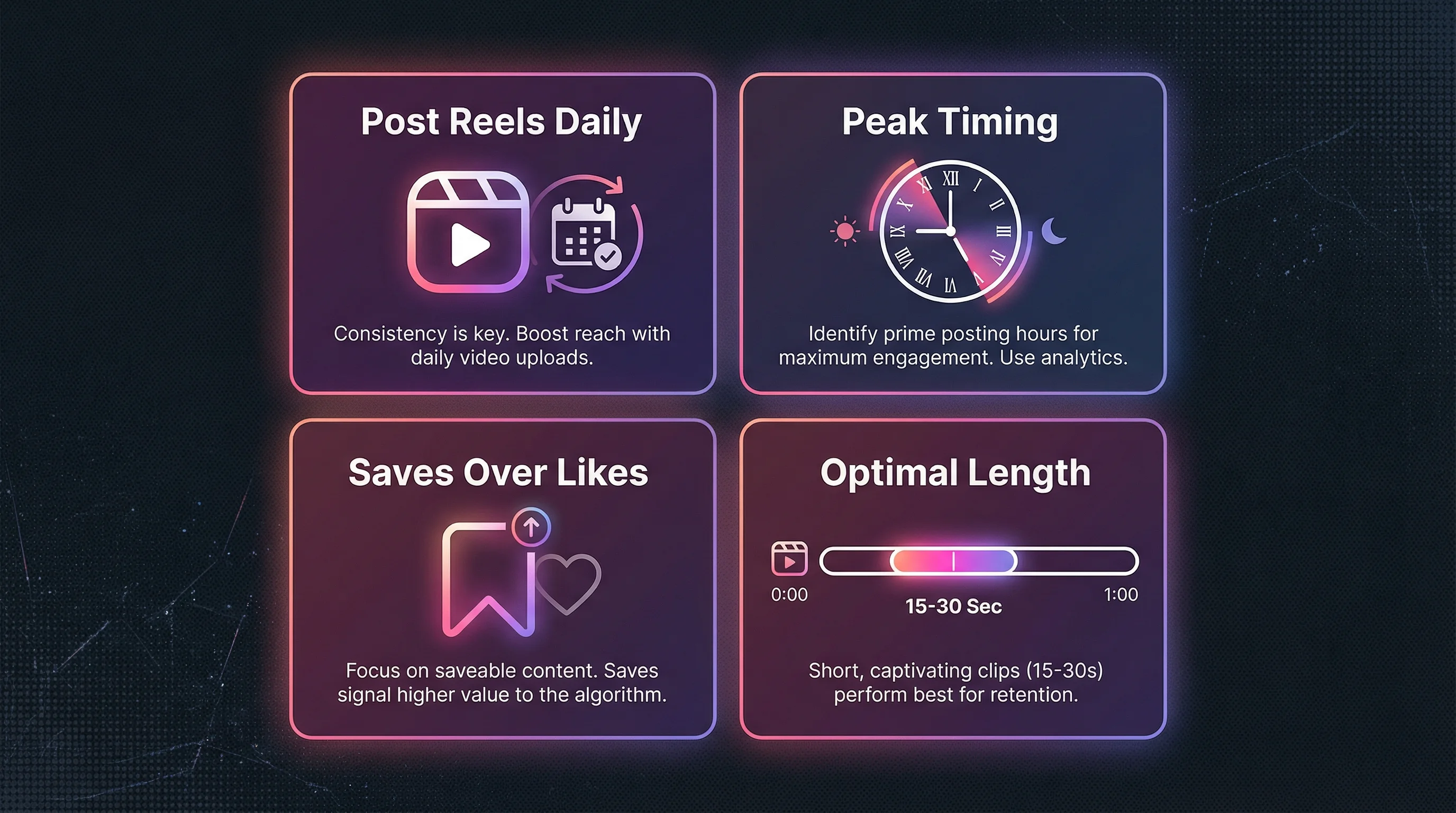
- Post Reels consistently in your exact niche. 5–7 per week minimum gives the algorithm enough data to correctly classify your account. For daily posting without manual production, FlowShorts auto-posts Reels on a set schedule.
- Drive saves and shares, not just likes. Saves are the strongest signal that your content has lasting value. Create reference-style content — checklists, step-by-step guides, comparison tables — that followers will want to revisit. See our Instagram Story ideas for engagement formats that drive DMs and saves.
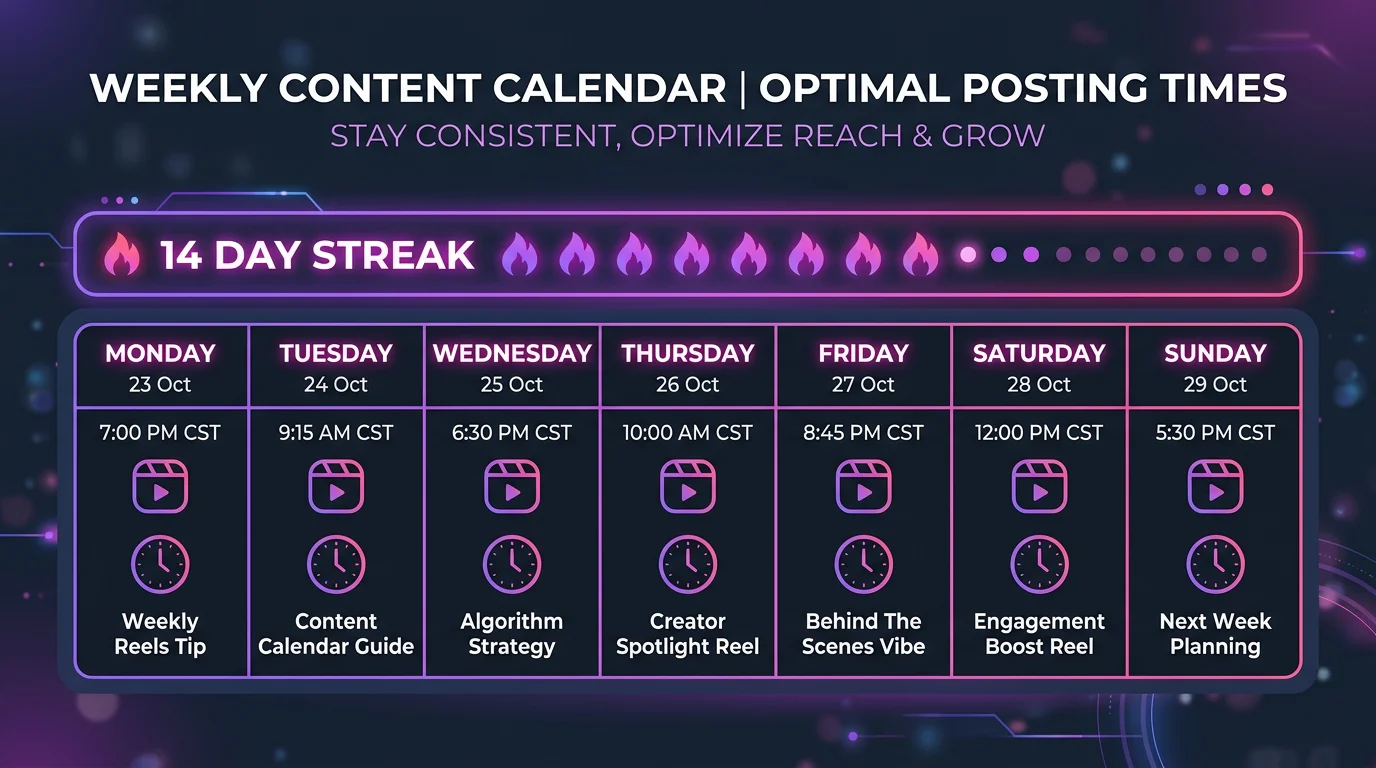
- Post at peak engagement times. Fast early engagement signals the algorithm to push your content wider. Check Instagram Insights → Audience → Most active times. See our best time to post Reels guide for data-backed timing.
- Use the right Reel length. 15–30 second Reels have the highest completion rates, which is the algorithm's primary Reels ranking signal. See our Reels length guide.
- Build engagement rate above your tier's average. If your rate is low, the algorithm classifies your content as low-quality regardless of niche. Check your current rate with our Instagram engagement rate calculator and compare against benchmarks.
For the complete creator strategy playbook, see our Instagram marketing strategy guide.
Frequently Asked Questions
Can you actually reset the Instagram algorithm?
Yes. By clearing your search history, using Instagram's native "Reset suggested content" option, marking content as "Not interested," unfollowing irrelevant accounts, and intentionally engaging with content you want to see more of, you force Instagram's recommendation system to re-learn your preferences. A focused reset takes 3–7 days to show significant changes across Feed, Reels, and Explore.
Is there a reset button on Instagram?
Yes — Instagram added one in 2025. Go to Settings → Suggested content → Reset all suggested content. This resets what Instagram recommends across Explore, Reels, and suggested accounts. Clear your search history separately (Your activity → Recent searches → Clear all) for a complete reset.
How long does it take to reset the Instagram algorithm?
Initial changes appear within 24–48 hours of marking content as "Not interested" and clearing search history. A full reset — where all surfaces (Reels, Explore, Feed, and suggested accounts) reflect your new preferences — takes 1–2 weeks of consistent new behavior. The Reels algorithm retrains fastest; the Feed algorithm is slowest because it's heavily weighted by your follow list.
Does clearing the cache reset the Instagram algorithm?
Partially. Clearing the app cache removes locally stored data but doesn't touch the behavioral profile Instagram stores on their servers. Cache clearing is a useful step but needs to be combined with clearing search history, marking "Not interested," and actively engaging with desired content to fully retrain the algorithm.
Does a shadowban affect the Instagram algorithm?
A shadowban restricts your content's distribution — it stops appearing in hashtag results and Explore — but it's separate from the recommendation algorithm that governs your personal feed. Recovery: pause posting for 48–72 hours, remove flagged content and banned hashtags, then resume at normal pace. See the shadowban scenario above for the full steps.
How do I reset my Instagram Reels algorithm specifically?
On every Reel you don't want, tap the three dots and select "Not interested." Mark 20–30 Reels in one session. Then watch 10–15 Reels you actually enjoy all the way through — full completion and replay. The Reels algorithm retrains within 24–48 hours based on watch time and "Not interested" signals. It's the fastest surface to retrain because Reels engagement is measured in real time.
Why is Instagram showing me content I don't like?
Instagram's algorithm interpreted past interactions as genuine interest signals — hate-watching, curiosity clicks, accidental likes, or a single heavy-engagement session with a topic can permanently skew recommendations. The 6-step reset process above clears these old signals and replaces them with accurate new ones.
Related Guides
- How the Instagram Algorithm Works (Full Guide)
- Instagram Engagement Rate: Benchmarks and How to Improve
- How to Get More Instagram Followers
- Instagram Marketing Strategy Playbook
- Best Time to Post Reels
- How to Make Instagram Reels
Stay Consistent While You Reset
Consistent posting is the fastest way to retrain the algorithm as a creator. FlowShorts generates AI-powered Reels daily — scripts, visuals, voiceover, captions, music — and auto-posts to Instagram, YouTube Shorts, and TikTok on your schedule.