YouTube Banner Size & Channel Art Dimensions: Complete Guide (2026)
YouTube banner size is 2560x1440 pixels with a 1546x423 safe zone. Complete guide to dimensions, safe areas, device rendering, design tips, and free banner makers.
FlowShorts Team
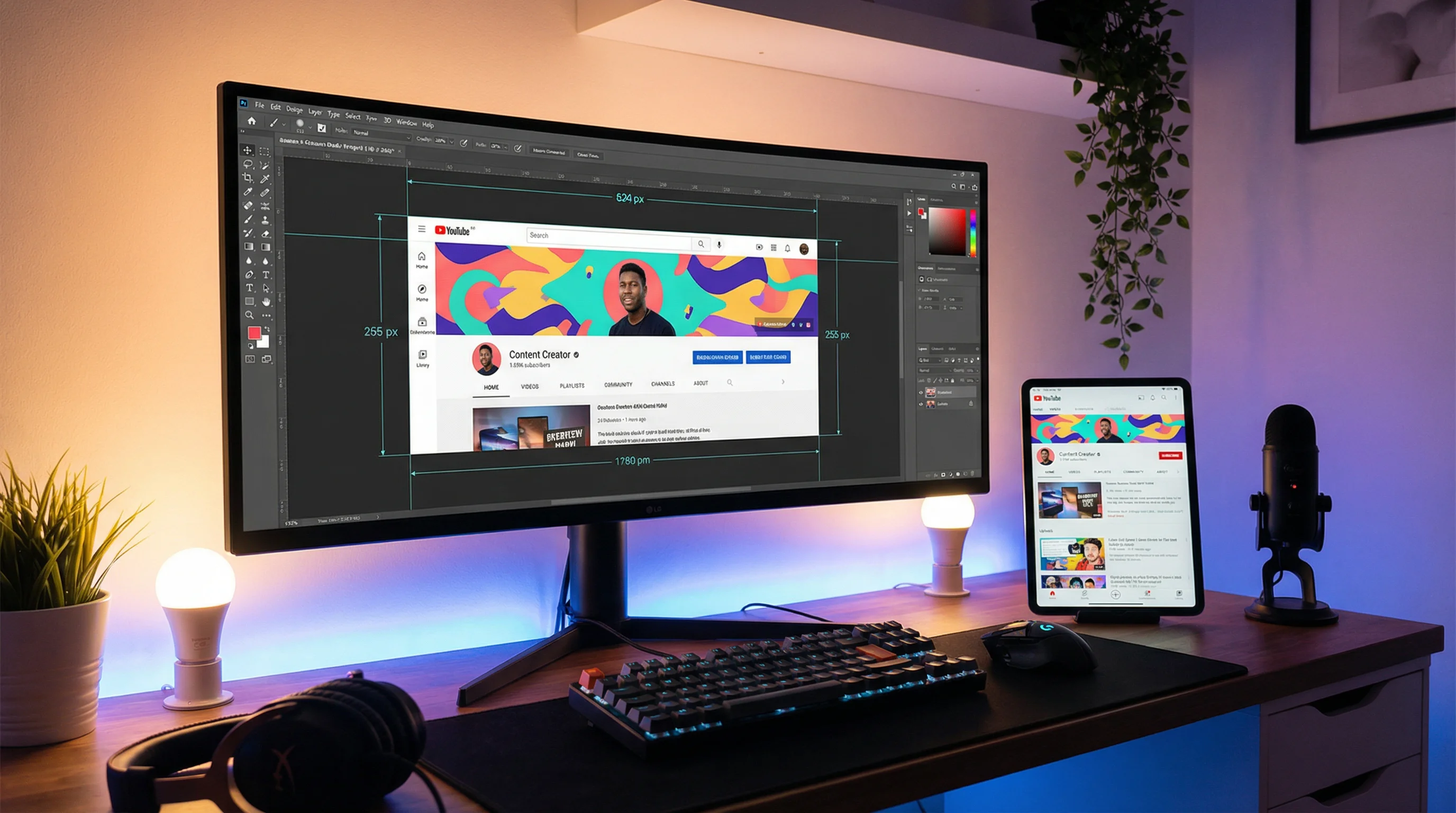
The ideal YouTube banner size is 2560 × 1440 pixels — but only the center 1546 × 423 pixels are guaranteed to show on every device. Get this wrong and your channel art looks cropped, blurry, or cut off depending on whether someone visits from mobile, desktop, or TV.
This guide covers the exact dimensions, safe zones, upload process, design tips, and common mistakes that make channel banners look amateur.
YouTube Banner Dimensions (2026)
| Specification | Requirement |
|---|---|
| Recommended size | 2560 × 1440 pixels |
| Minimum size | 2048 × 1152 pixels |
| Aspect ratio | 16:9 |
| Maximum file size | 6 MB |
| File format | PNG, JPG, GIF (animated GIFs not supported) |
| Safe area (all devices) | 1546 × 423 pixels (centered) |
Upload at the maximum 2560 × 1440 even though only a portion shows on mobile and desktop. TV apps display the full banner, and uploading at maximum resolution ensures the best quality across all devices.
How YouTube Displays Banners on Different Devices
YouTube crops your banner differently depending on what device a viewer uses to visit your channel. This is why the "safe zone" matters so much:
| Device | What Shows | Pixels Displayed |
|---|---|---|
| TV app | Full banner | 2560 × 1440 |
| Desktop browser | Center horizontal strip | 2560 × 423 |
| Tablet | Wider horizontal strip | 1855 × 423 |
| Mobile | Center strip only | 1546 × 423 |
The safe zone — the 1546 × 423 pixel centered rectangle — is the only area guaranteed to show on all four device types. Everything outside this zone may be cropped depending on the device.

The Safe Zone: What Goes Where
Design your banner with these zones in mind:
- Inner safe zone (1546 × 423 px, center): Channel name, tagline, posting schedule, and any text you need all viewers to read. This is visible on every device including mobile.
- Mid zone (1855 × 423 px): Visible on tablets and larger. Safe for secondary branding elements and decorative text.
- Outer zone (2560 × 423 px): Visible on desktop and TV. Background patterns, extended imagery, and decorative elements that enhance the banner but aren't critical to read.
- Top and bottom (full 2560 × 1440): Visible on TV only. Can have imagery and design elements but should not have critical text — most viewers will never see it.
Practical rule: Keep all text, your channel name, and any call-to-action within the 1546 × 423 center rectangle. Everything else is decoration that appears as a bonus on larger screens.
How to Upload a YouTube Banner
- Go to YouTube Studio
- Click Customization in the left sidebar
- Click the Branding tab at the top
- Under "Banner image," click Upload
- Select your 2560 × 1440 image file (PNG or JPG under 6 MB)
- YouTube will show you a preview of how the banner looks on TV, desktop, tablet, and mobile
- Click Done then Publish in the top right
The preview step is crucial — YouTube Studio's preview shows exactly what viewers will see on each device type. If your channel name is getting cropped on mobile, you'll see it here and can adjust before publishing.
YouTube Banner Design Best Practices
1. Keep Text in the Center Third
Create Faceless Videos on Autopilot
FlowShorts generates and posts AI videos to YouTube, TikTok & Instagram while you sleep.
Try FlowShorts Free →Only the center 1546 × 423 pixel safe zone is guaranteed visible on mobile. All essential text — channel name, tagline, schedule — must stay within this rectangle. Text outside the safe zone disappears for most mobile viewers (who make up 50%+ of YouTube traffic).
2. Use Your Brand Colors
Your banner is the first thing a viewer sees when they visit your channel page. Use the same color palette you use in your thumbnails, channel watermark, and content. Visual consistency across these touchpoints makes your channel recognizable and professional.
3. Include Your Upload Schedule (If Consistent)
Many successful channels include their posting schedule ("New videos every Tuesday" or "Daily Shorts") in the banner. This sets expectations for subscribers and is a conversion signal for people deciding whether to subscribe. For automated daily posting schedules, FlowShorts handles YouTube Shorts scheduling automatically.
4. Match Your Niche Visually
The banner should instantly communicate what your channel is about. A finance channel should look different from a gaming channel — in color choices, imagery style, and typography. Someone landing on your channel page should understand your niche within 2 seconds of seeing the banner.
5. Avoid Clutter
The most common banner mistake is trying to say too much. Channel name + tagline + optional posting schedule is all you need. Adding your social handles, subscription count, email address, or multiple CTAs creates visual noise that makes nothing stand out.
6. Design at 2560 × 1440 from the Start
Don't design at a smaller size and scale up. Always work at the full 2560 × 1440 canvas in your design tool. Scaling up causes blurriness that gets worse after YouTube's additional compression. Design at full size, then save/export for upload.

YouTube Banner vs. YouTube Thumbnail Sizes
| Element | Size | Aspect Ratio | Safe Zone |
|---|---|---|---|
| Channel Banner | 2560 × 1440 px | 16:9 | 1546 × 423 px (center) |
| Video Thumbnail | 1280 × 720 px | 16:9 | Center 70% (avoid timestamp corner) |
| Channel Icon | 800 × 800 px | 1:1 | Entire area (circular crop applied) |
| Channel Watermark | 150 × 150 px | 1:1 | Entire area |
For complete thumbnail specs and design tips, see our YouTube thumbnail size guide.
Best Free YouTube Banner Makers
| Tool | Best For | Key Feature | Price |
|---|---|---|---|
| Canva | Beginners, fast design | YouTube banner templates pre-sized at 2560×1440, drag-and-drop | Free (Pro $13/mo) |
| Adobe Express | Brand-consistent design | Brand kit (fonts, colors), AI text-to-image backgrounds | Free (Premium $10/mo) |
| Photopea | Advanced editing, Photoshop-like | Full layer-based editor in the browser, no account needed | Free |
| Fotor | Template-based quick design | Large template library, AI background generation | Free (Pro $9/mo) |
| Figma | Designers, teams, brand systems | Collaborative design, reusable components, pixel precision | Free tier |
Recommended approach for beginners: Use Canva's YouTube channel art template (pre-set to 2560×1440). Enable their "safe zone" guide overlay to keep your text within the visible area on all devices. Export as PNG for highest quality.
Create Faceless Videos on Autopilot
FlowShorts generates and posts AI videos to YouTube, TikTok & Instagram while you sleep.
Try FlowShorts Free →When to Update Your YouTube Banner
- When your channel niche shifts — if your content changes focus, the banner should reflect the new direction
- When you rebrand — new name, color scheme, or visual identity should cascade to your banner immediately
- For seasonal campaigns — limited-time banners for YouTube milestones, product launches, or seasonal content pushes
- When it looks outdated — design trends evolve. A banner from 2021 often looks dated in 2026. A refresh signals an active, growing channel.
- When you hit major milestones — updating your banner to reflect subscriber count milestones (100K, 1M) is a community engagement tactic
Common YouTube Banner Mistakes
- Text outside the safe zone. The most common mistake. Your channel name is invisible on mobile if it's not within the 1546 × 423 center rectangle.
- Uploading below the minimum size. Anything below 2048 × 1152 will look blurry on TV screens and when YouTube scales it. Always design at 2560 × 1440.
- Forgetting to check the device preview. YouTube Studio shows exactly what your banner looks like on TV, desktop, tablet, and mobile before you publish. Always check all four before confirming.
- Using a low-resolution logo. If your channel icon or logo is included in the banner, use a vector version or at least 300+ DPI source. Small logos look pixelated when scaled up.
- Too much text. Banners are seen at a glance. If it takes more than 2 seconds to read, you have too much text. Channel name + one line = maximum.
- Dark text on dark background. Banners are viewed on TV in living rooms (often lit) and on phones in bright sunlight. High-contrast designs (light text on dark background or vice versa) remain legible across environments.
Frequently Asked Questions
What size should a YouTube channel banner be?
The recommended YouTube banner size is 2560 × 1440 pixels in a 16:9 aspect ratio. This is the maximum size and the one you should always use. Keep all critical text and branding within the center 1546 × 423 pixel safe zone — that's the only area guaranteed to show on all devices (TV, desktop, tablet, and mobile).
What is the YouTube banner safe zone?
The YouTube banner safe zone is the 1546 × 423 pixel centered rectangle on your 2560 × 1440 canvas. Content within this zone is visible on all devices. On mobile (the most common viewing device), only this center area displays — the left/right sides and top/bottom are cropped. All text, channel name, and critical visual elements must stay within this zone.
What file format should I use for a YouTube banner?
PNG for most banners — it preserves crisp text and sharp edges better than JPG. Use JPG only if your banner is a photograph with no text, which results in a smaller file size. Animated GIFs are not supported. Maximum file size is 6 MB regardless of format.
How do I change my YouTube banner?
Go to YouTube Studio → Customization → Branding tab → Banner image → Upload. Select your new banner image, check the device previews, click Done, then Publish. The banner updates immediately and is visible to all viewers on your channel page.
Does YouTube banner size affect views or subscribers?
Not directly — the banner doesn't affect how YouTube distributes your videos. But a professional, clear banner improves the channel page conversion rate — the percentage of visitors who decide to subscribe. Visitors who arrive via search or suggested videos evaluate your channel page before subscribing, and a polished banner signals an active, trustworthy creator.
What is the minimum YouTube banner size?
The minimum accepted size is 2048 × 1152 pixels. Anything smaller is rejected during upload. However, always design at the recommended 2560 × 1440 — minimum size images look blurry on TV screens and may lose quality after YouTube's compression.
Related Guides
- YouTube Thumbnail Size & Design Guide
- 50 YouTube Channel Ideas by RPM
- YouTube Partner Program Requirements
- YouTube Analytics: Complete Guide
- How to Start a YouTube Channel
Fill Your Channel With Daily Shorts
FlowShorts generates and auto-posts daily YouTube Shorts for any niche — AI scripts, visuals, voiceover, captions, and scheduling. A great banner drives subscriptions; consistent Shorts posting keeps them.